

Thank you for choosing the Jitrainno Echo-31 (31.5). Read this manual completely before using the product and keep it for future reference.
Important safety notice: This product is for indoor use only. Use the included USB Type-C cable with the optional JITRAINNO power adapter or a compatible certified power adapter. Place the device on a stable, dry, well-ventilated surface, or mount it securely using hardware suitable for the wall material. Do not disassemble the device or its built-in battery. Stop using the device immediately if you notice unusual heat, odor, swelling, damage, or liquid ingress. See “Important Safety Instructions” for complete information.
Product Overview
The Jitrainno Echo-31 (31.5) is a rechargeable e-paper photo frame that supports landscape or portrait display and wall mounting. With the JITRAINNO App, you can send individual photos or playlists (rotating collections of multiple photos) to the device and use features including the content gallery, text-to-image generation, voice interaction, and device sharing.
The e-paper display consumes most of its power while refreshing. Power consumption is low while an image remains displayed. Brief flashing or rapid color changes during a refresh are normal characteristics of e-paper display technology.
Package Contents
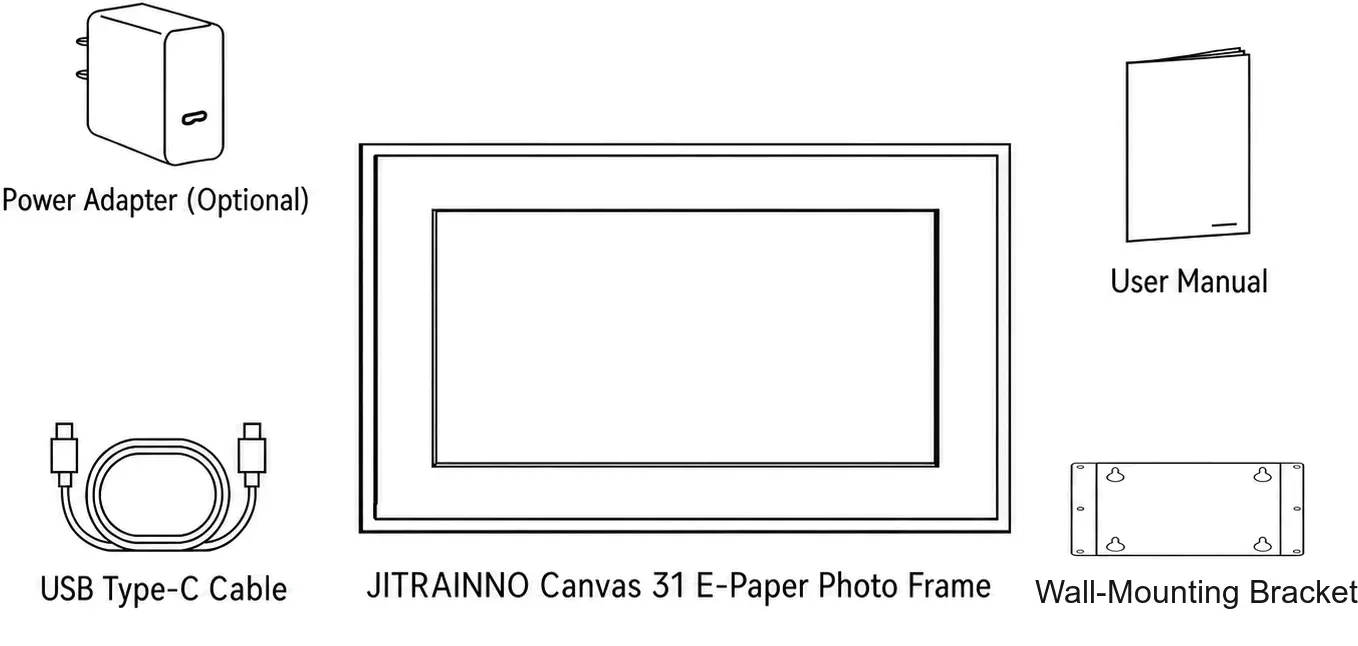
The power adapter is optional and may not be included. Other package contents may also vary slightly by sales region or production batch. Refer to the actual package. If anything is missing or damaged, contact the retailer or JITRAINNO Customer Support.
Quick Start
1. Turn On the Device and Connect Power
First, make sure the physical power switch on the back of the device is in the on position. Place the device securely on a dry, well-ventilated surface. Use the included USB Type-C cable to connect the device to the optional JITRAINNO power adapter or a compatible certified power adapter, then plug the adapter into a power outlet. Keep the device connected to power during initial setup. After binding is complete, you can check the battery level in the JITRAINNO App and disconnect external power when the battery has sufficient charge.
2. Download the JITRAINNO App
Search for “JITRAINNO” in your phone’s app store, or visit jitrainno.com/app-download.
For reliable device binding and photo transfers, update the App to the latest version and grant the required permissions when prompted, such as Bluetooth, local network, or nearby devices. Photo access is also required when selecting photos from the system photo library. Permission names may vary by phone operating system and version.
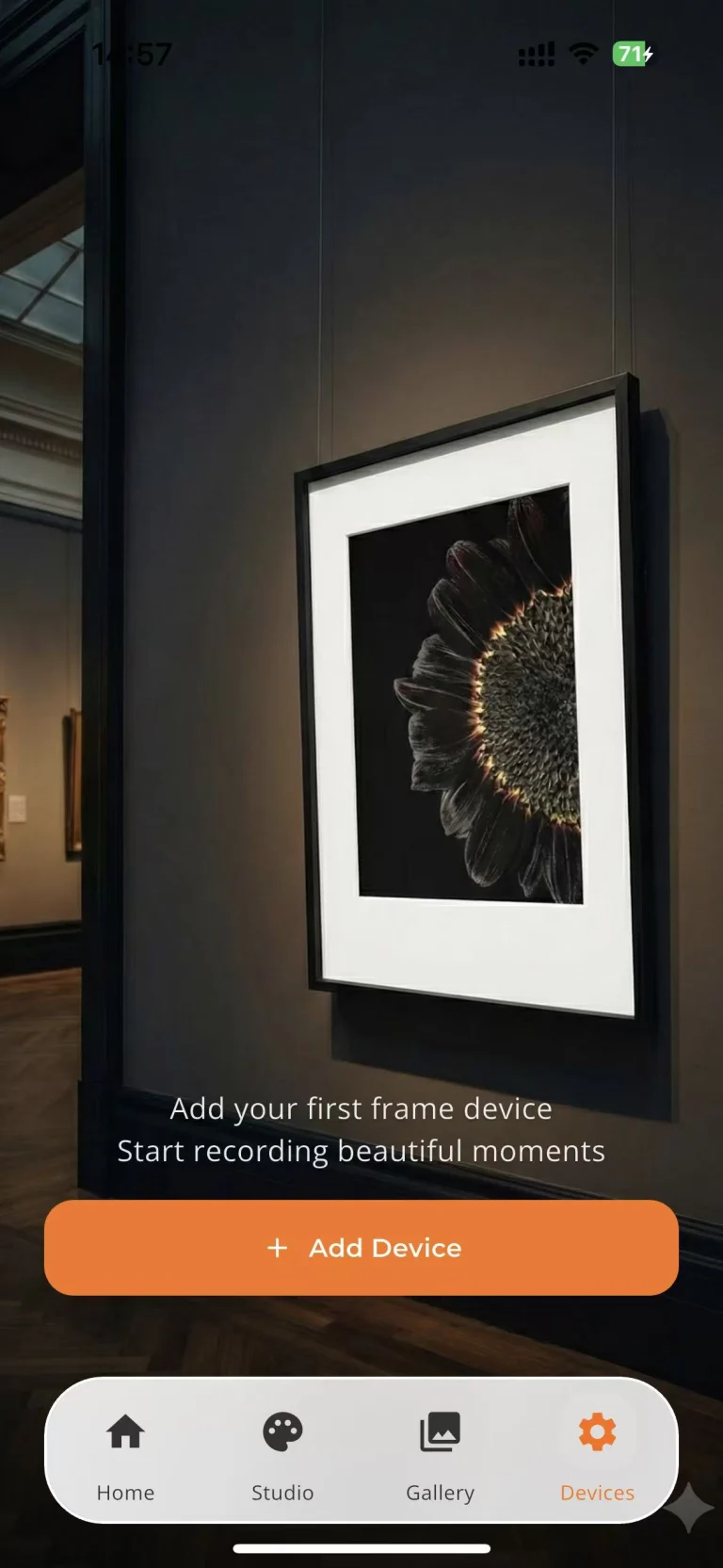
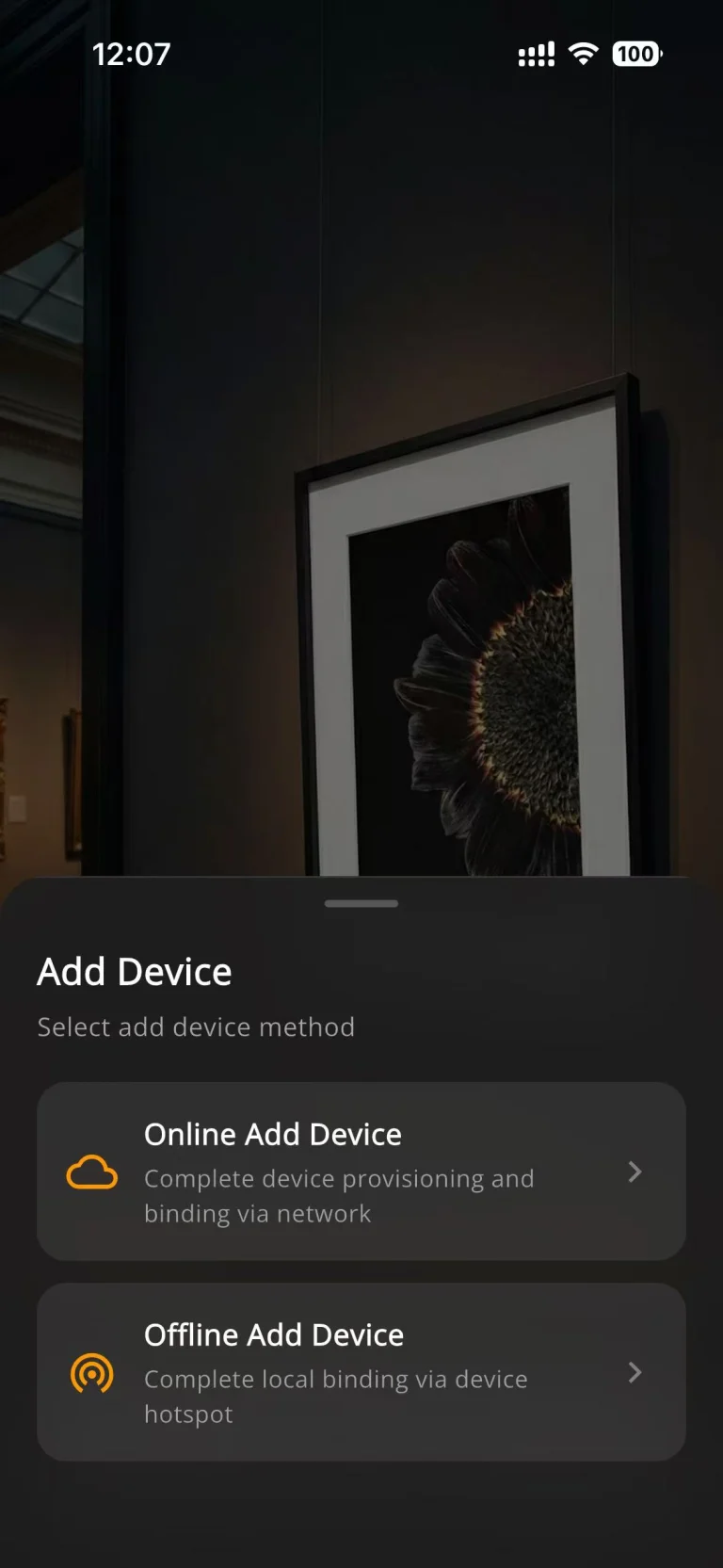
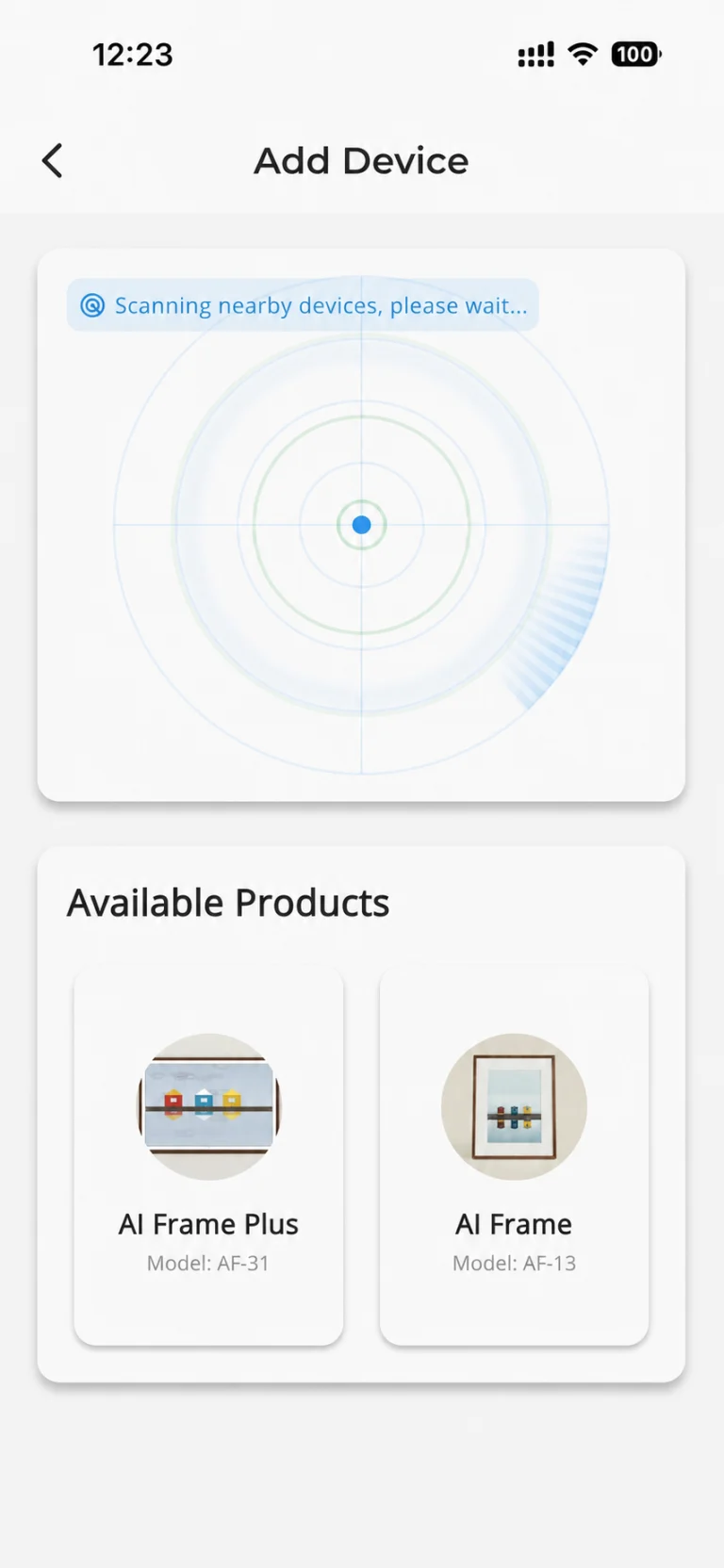
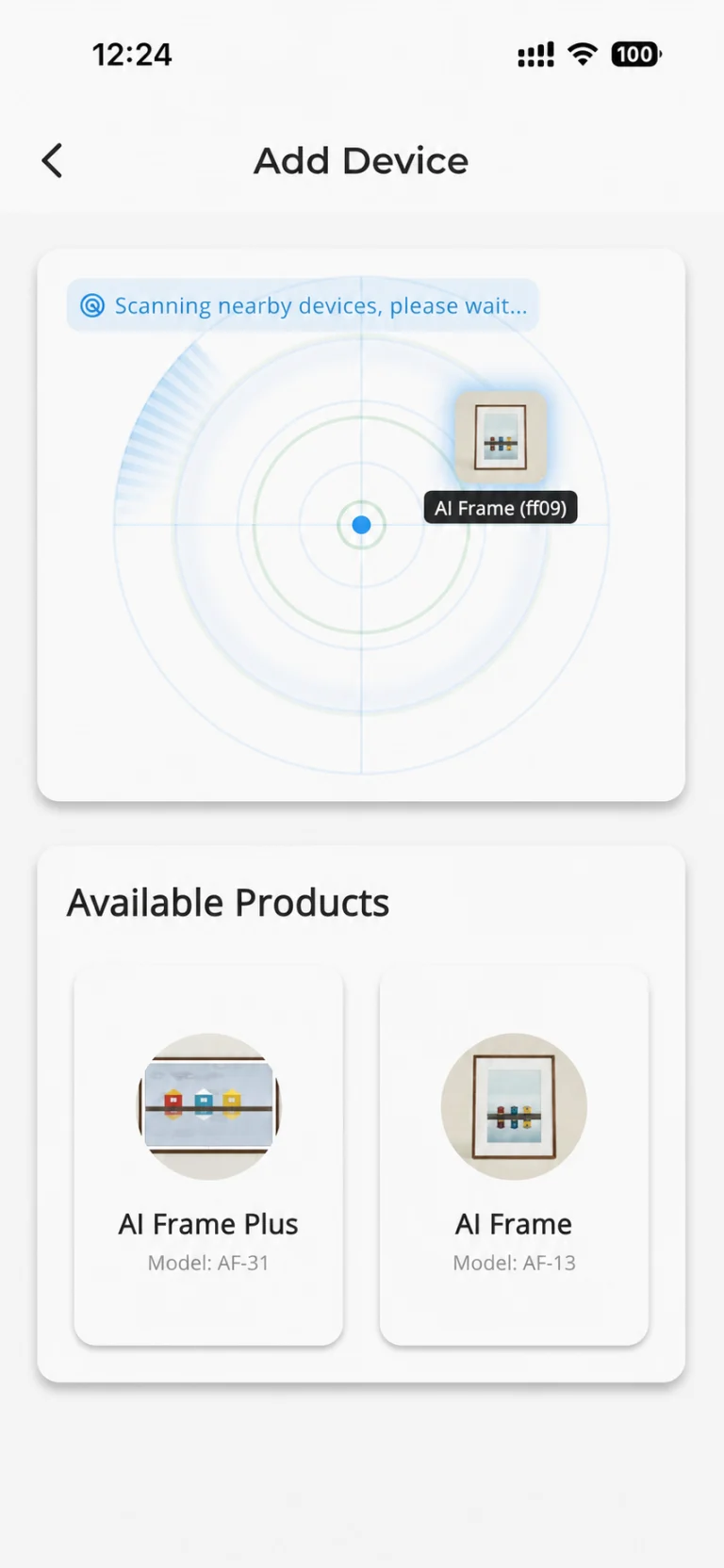
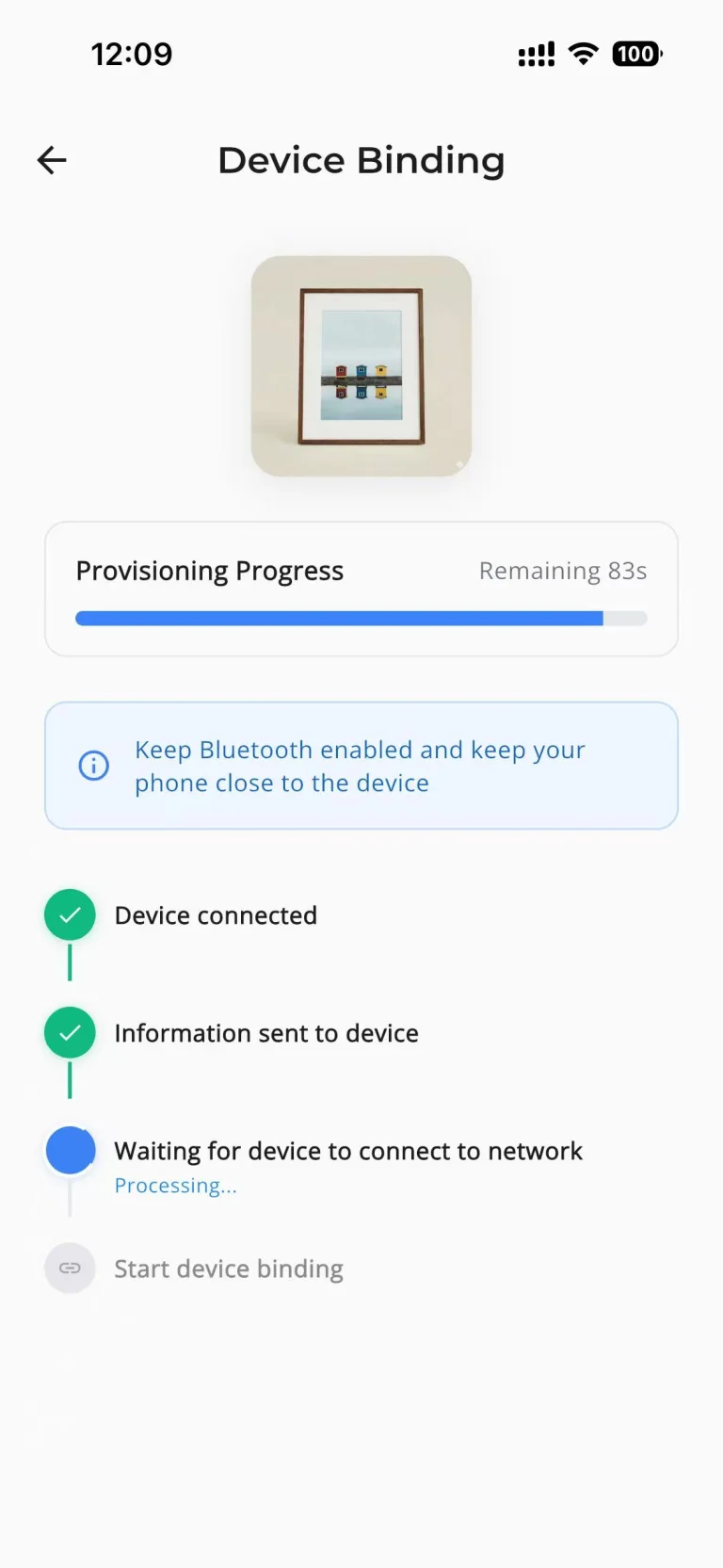
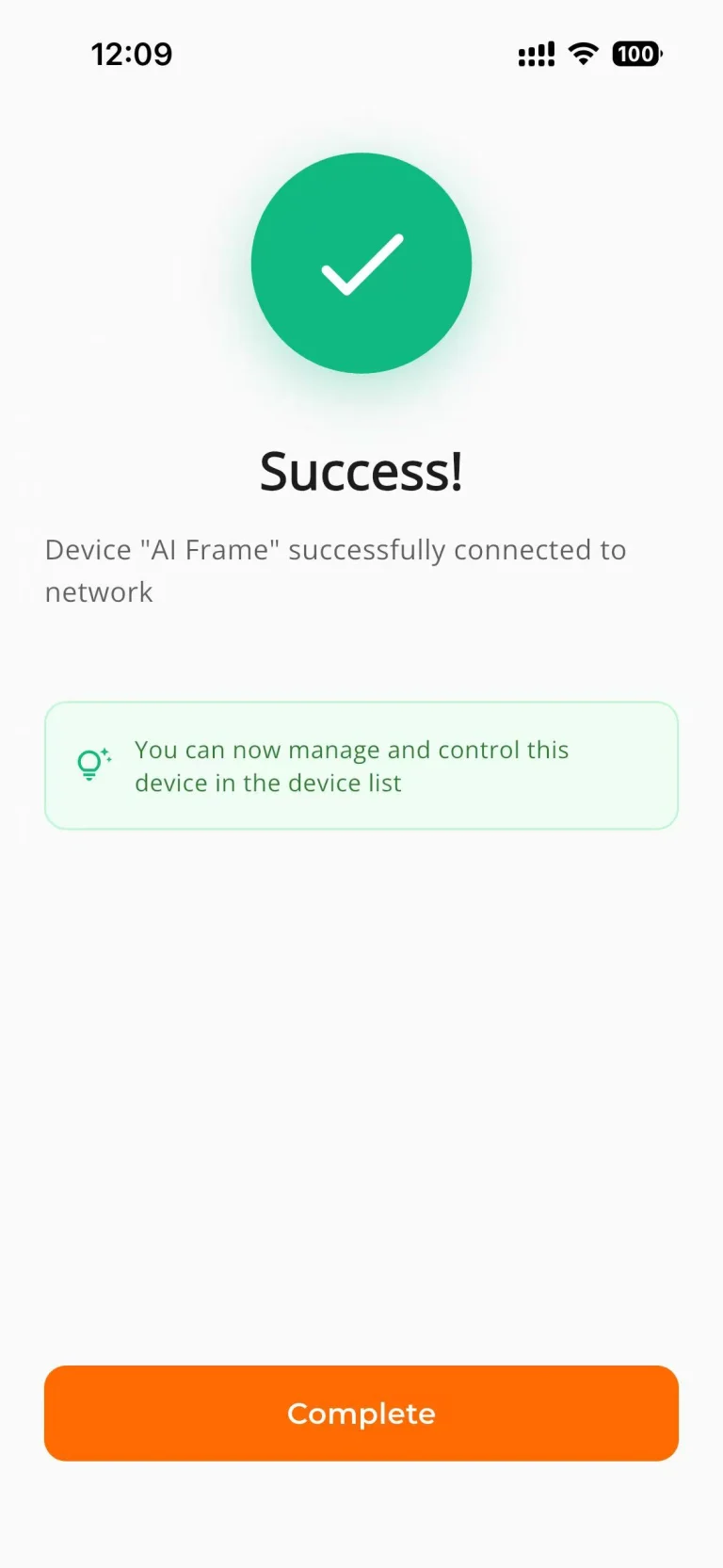
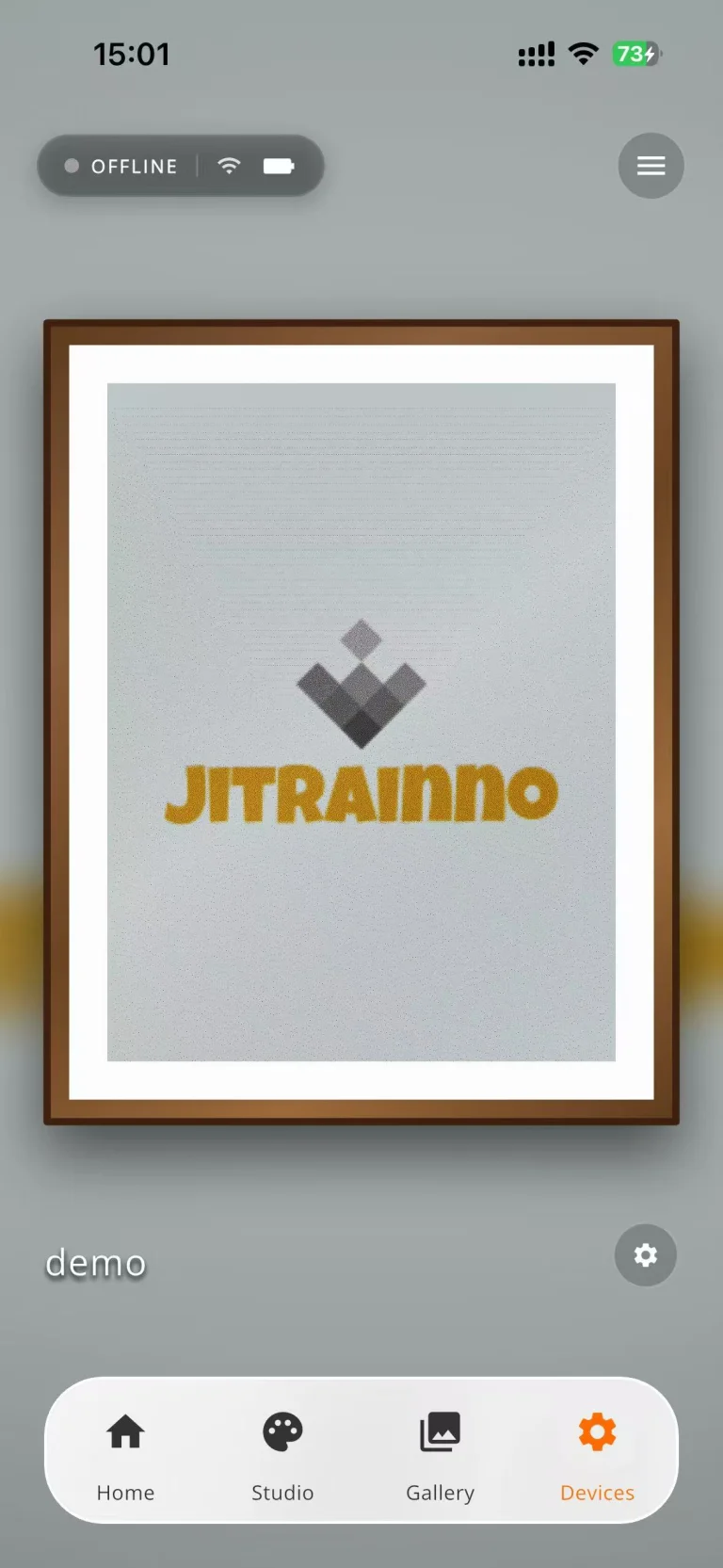
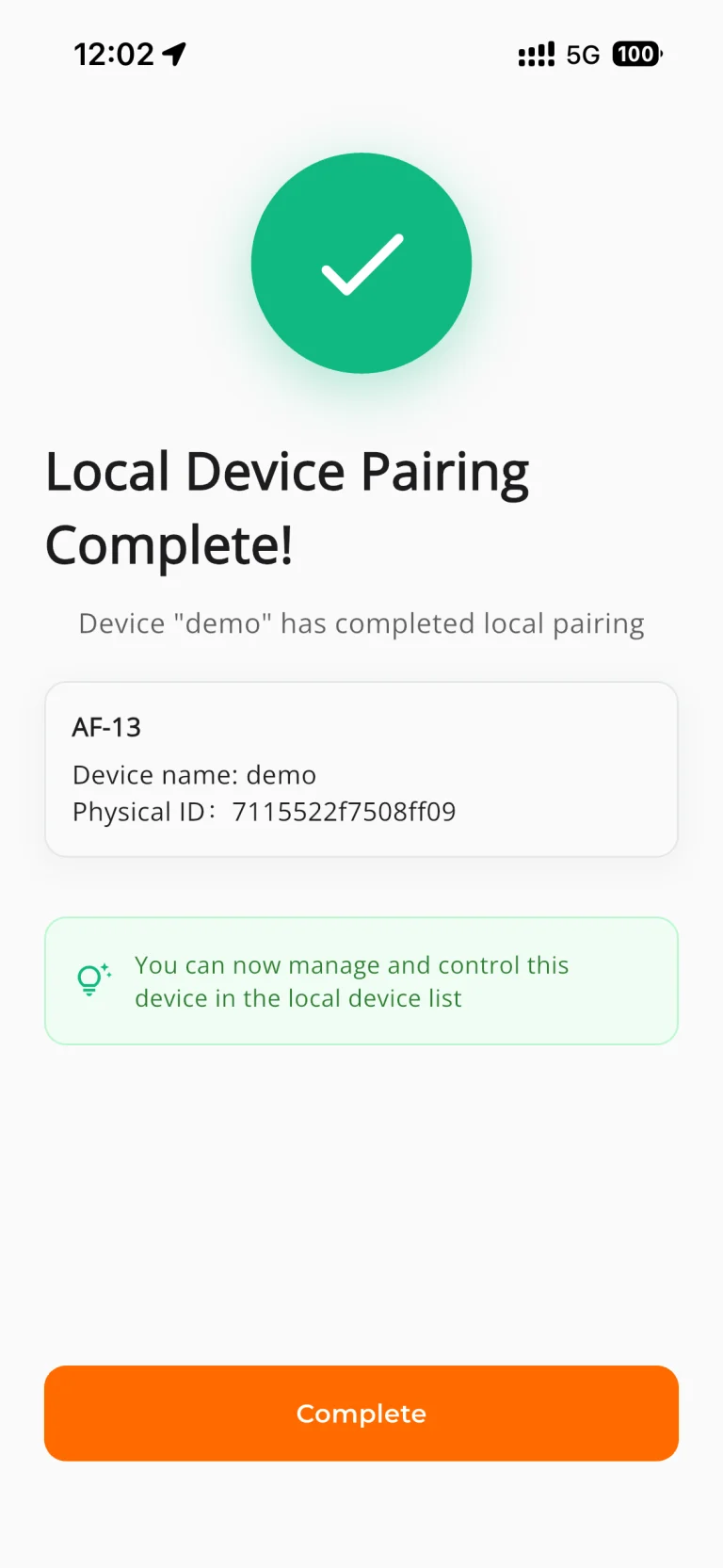
3. Bind the Device
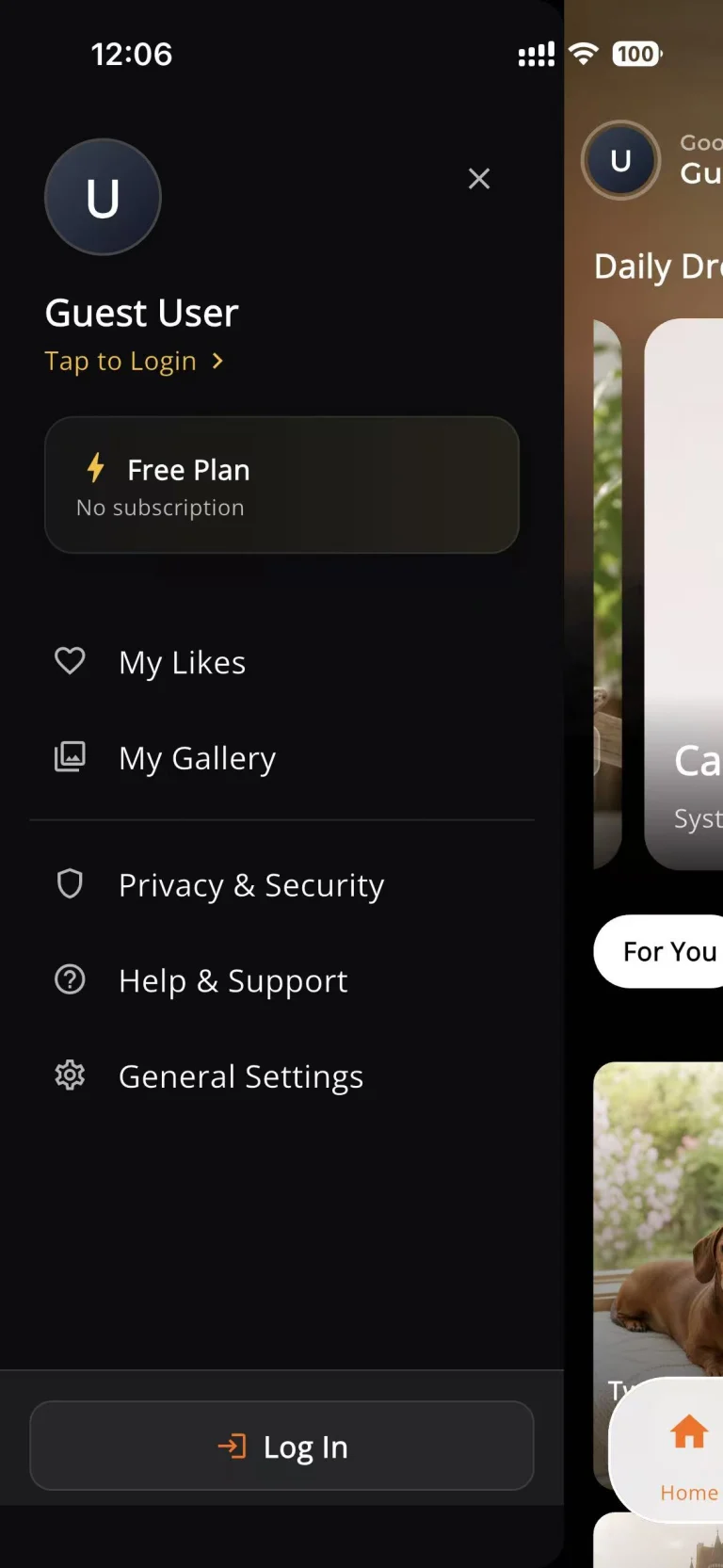
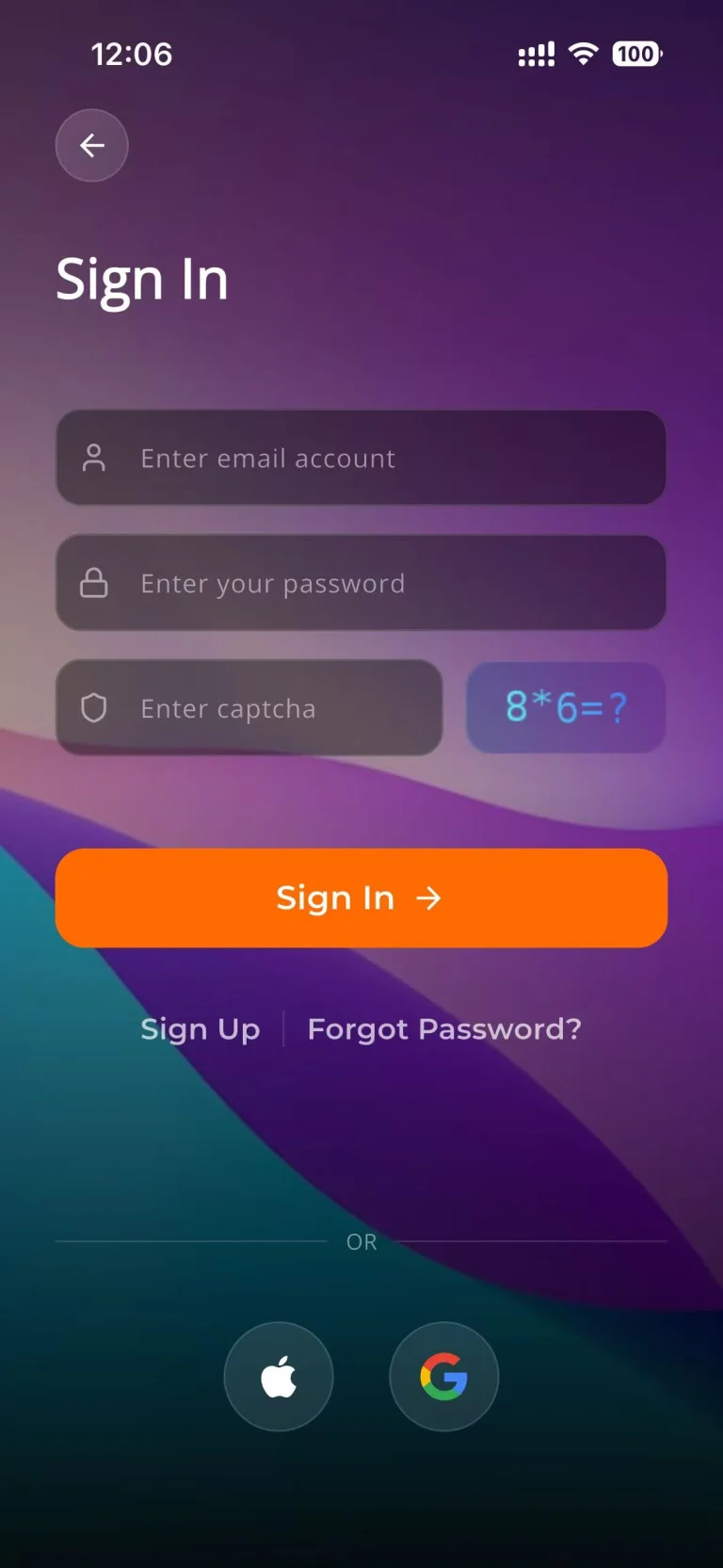
Online Binding with a JITRAINNO Account
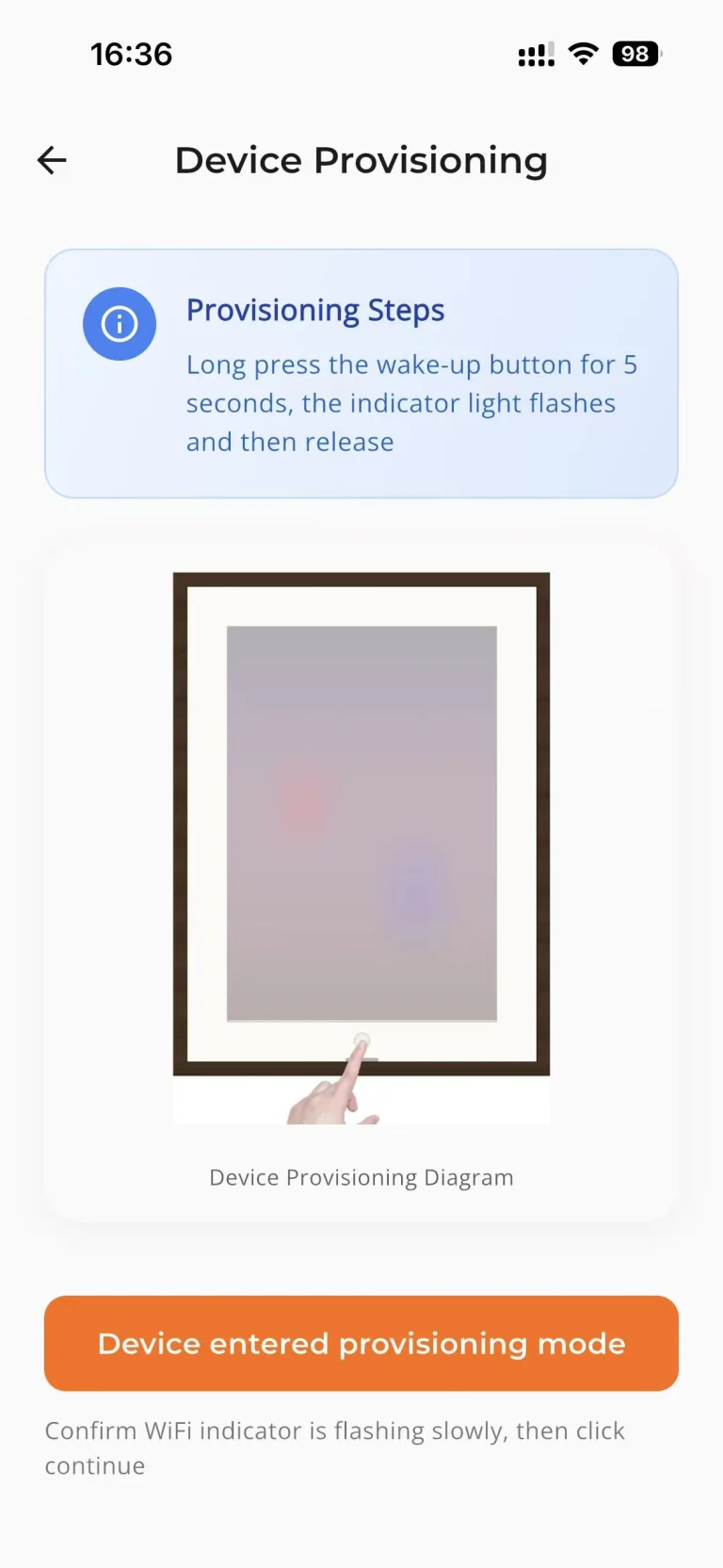
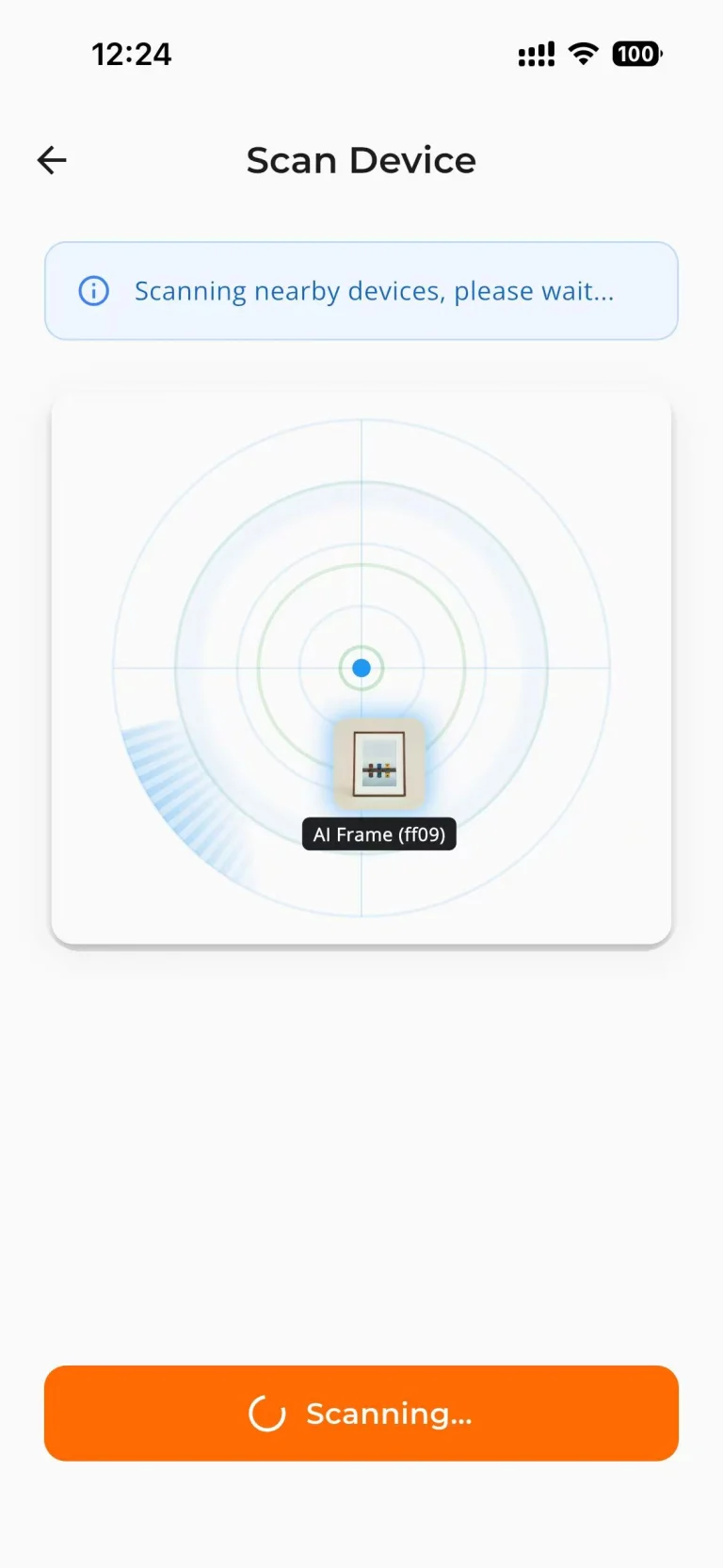
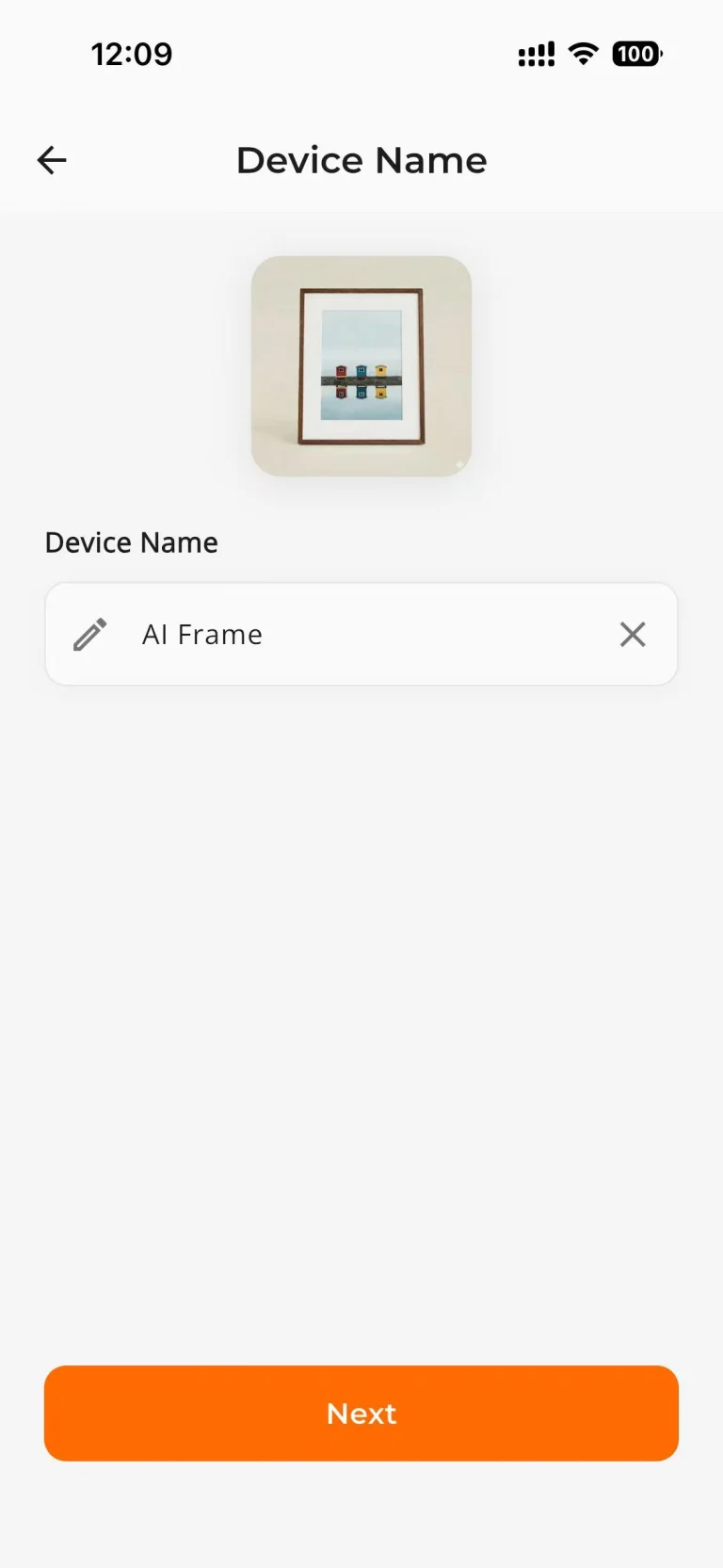
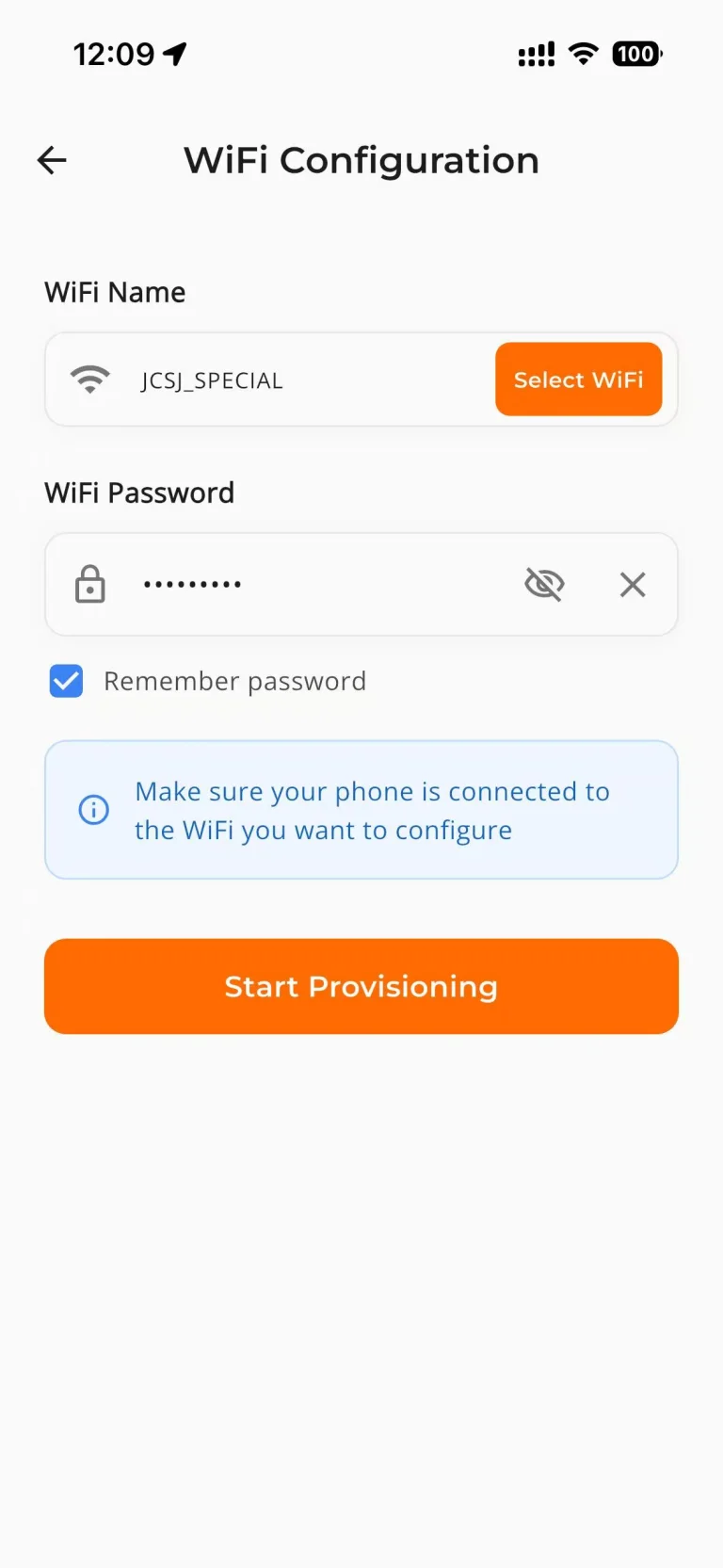
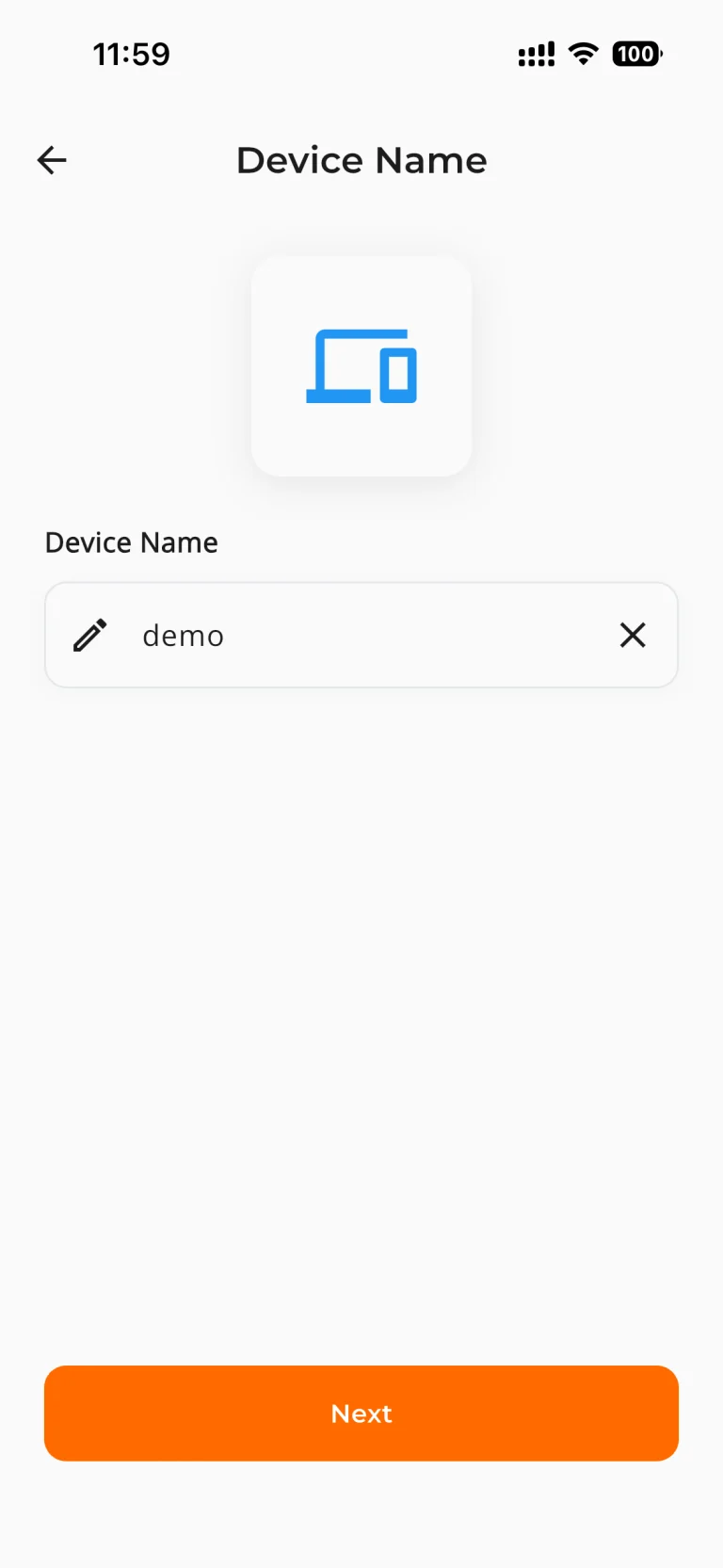
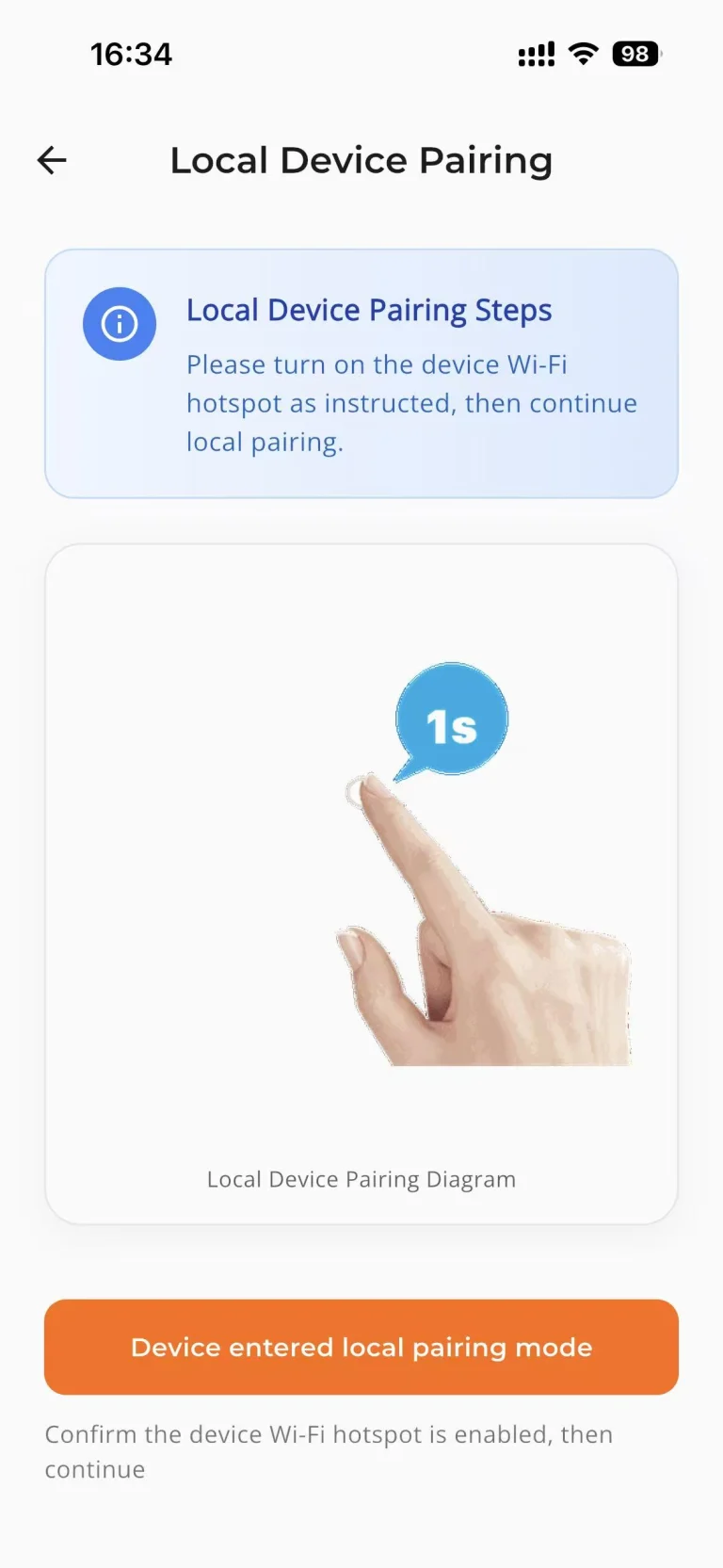
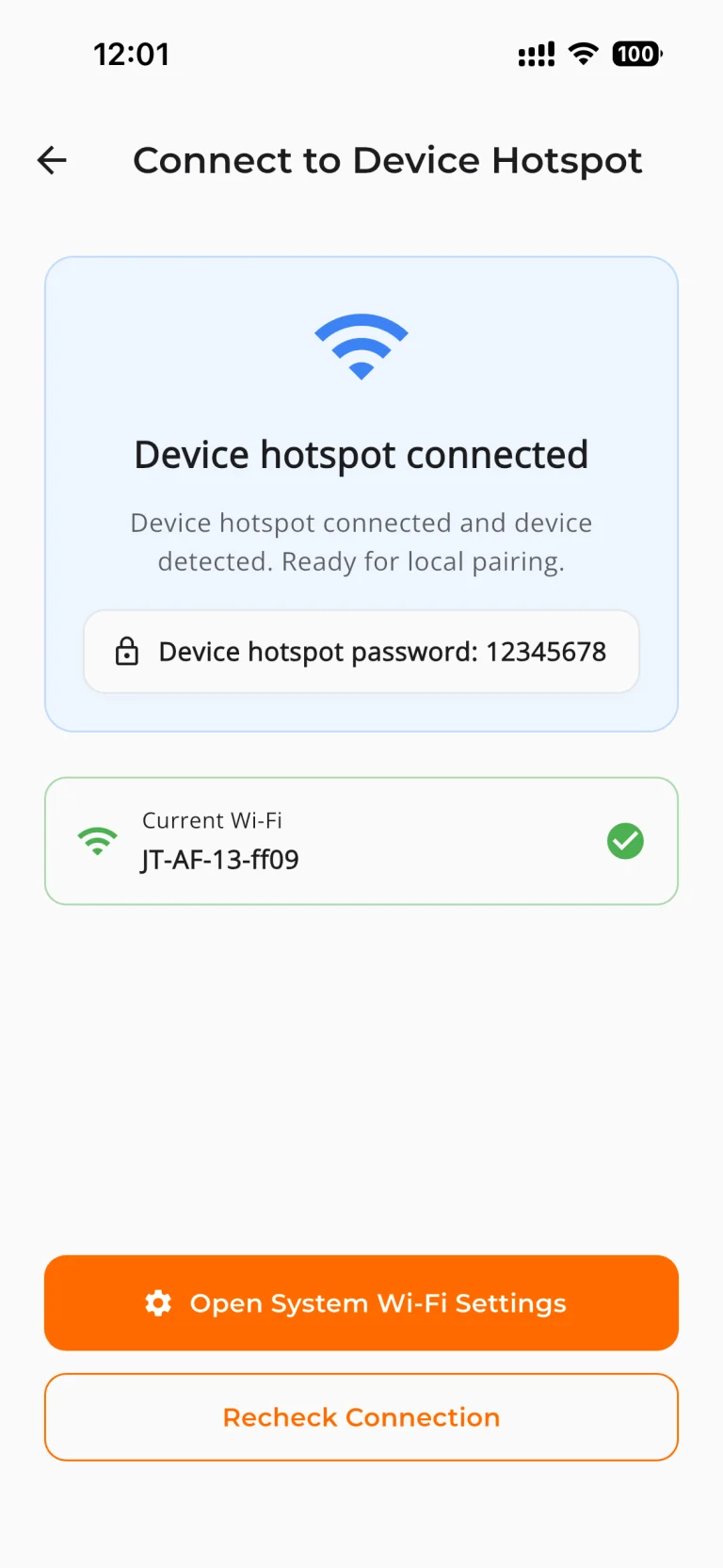
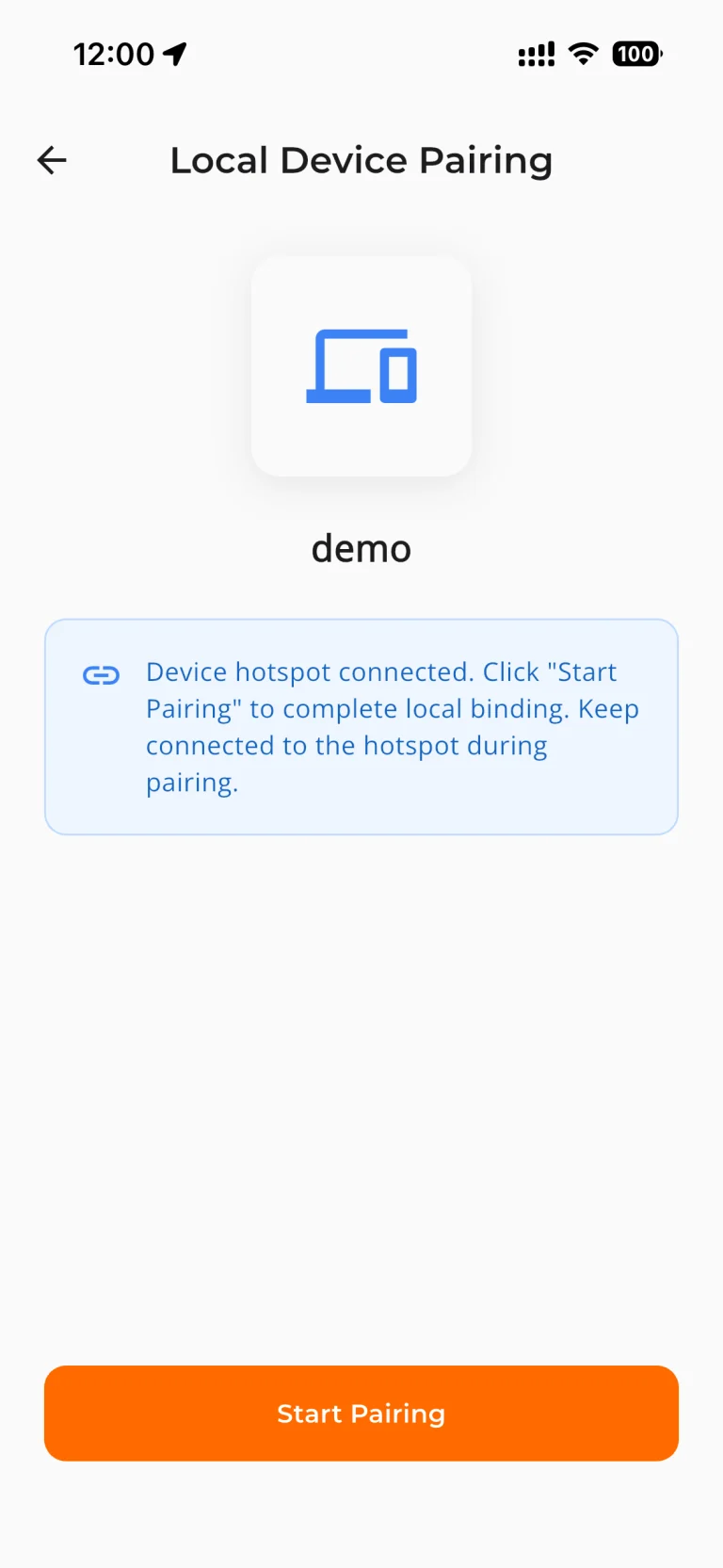
Offline Binding Without Signing In
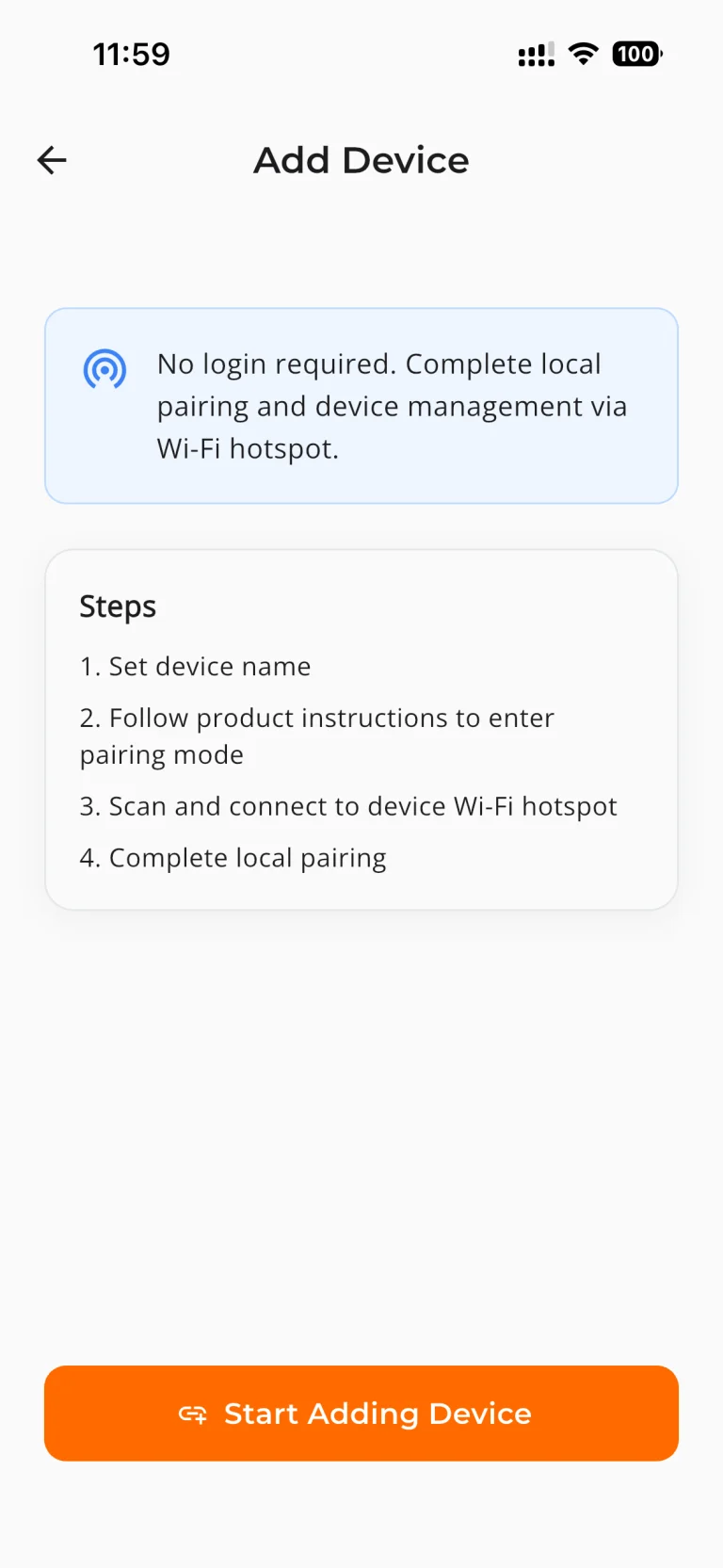
4. Add Photos
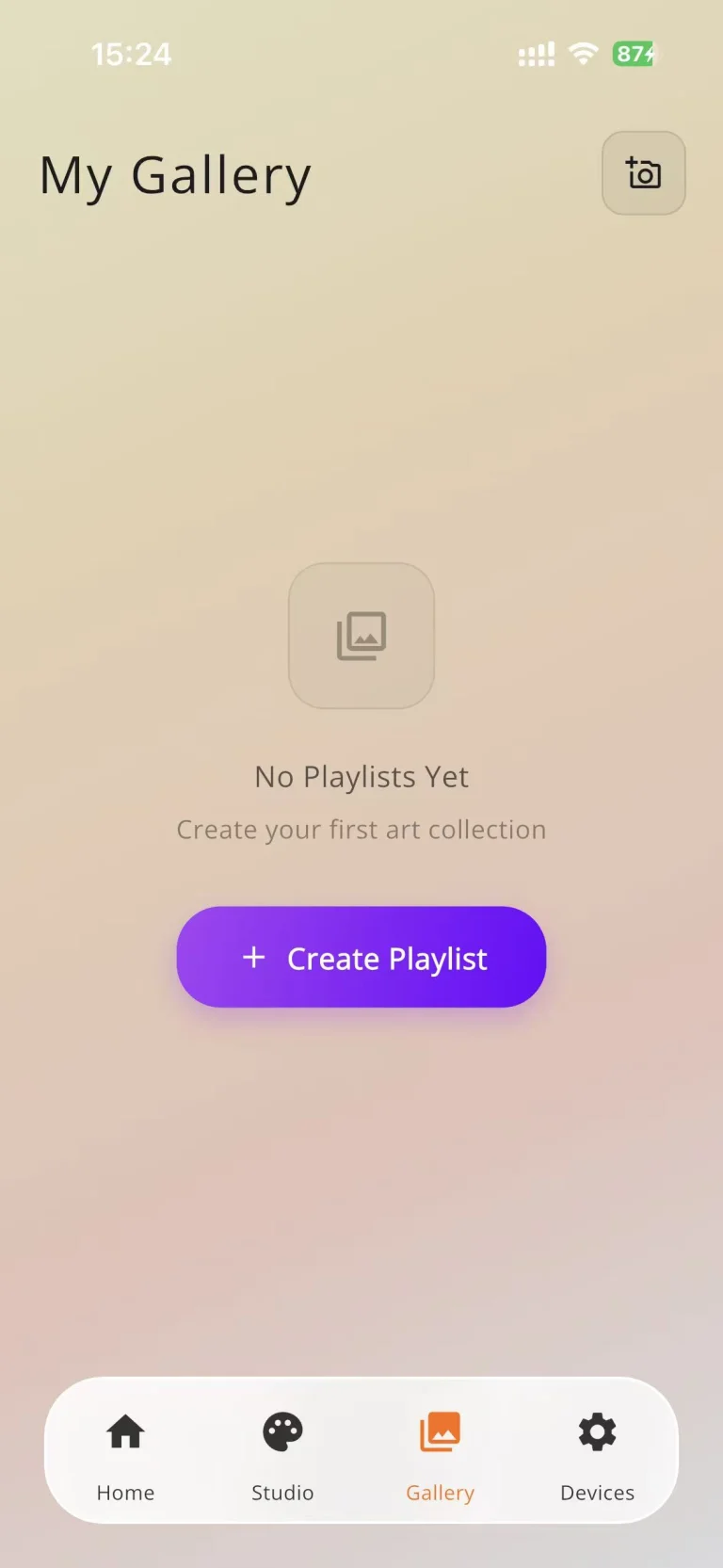
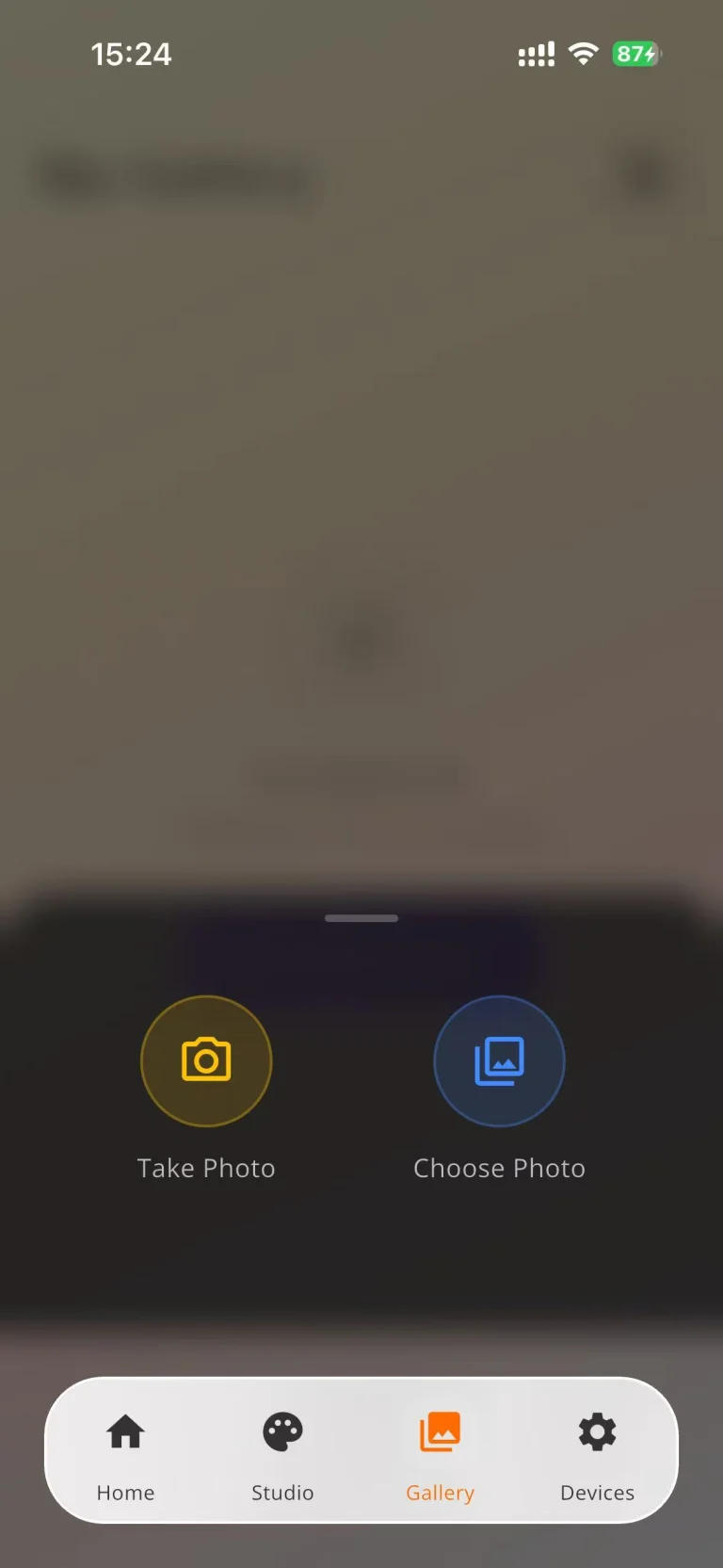
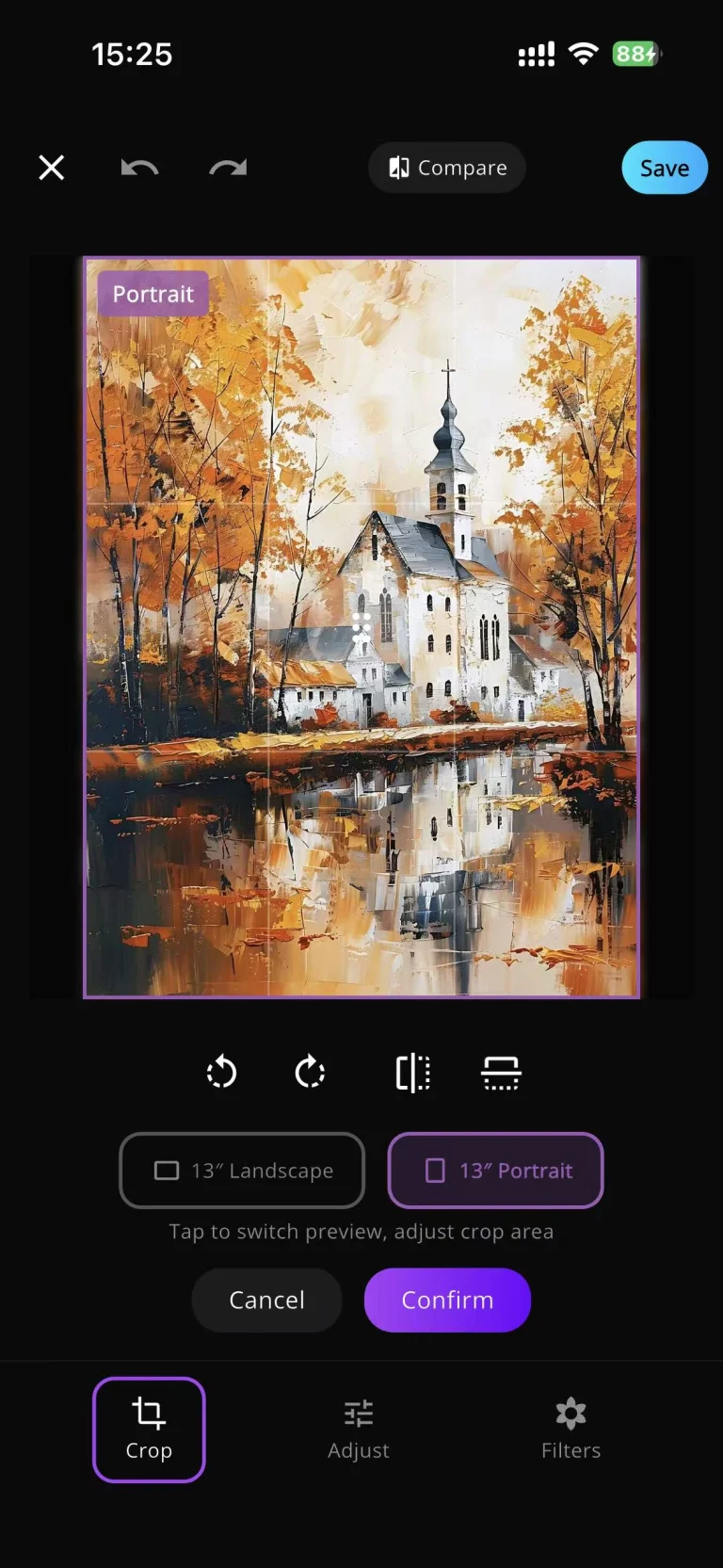
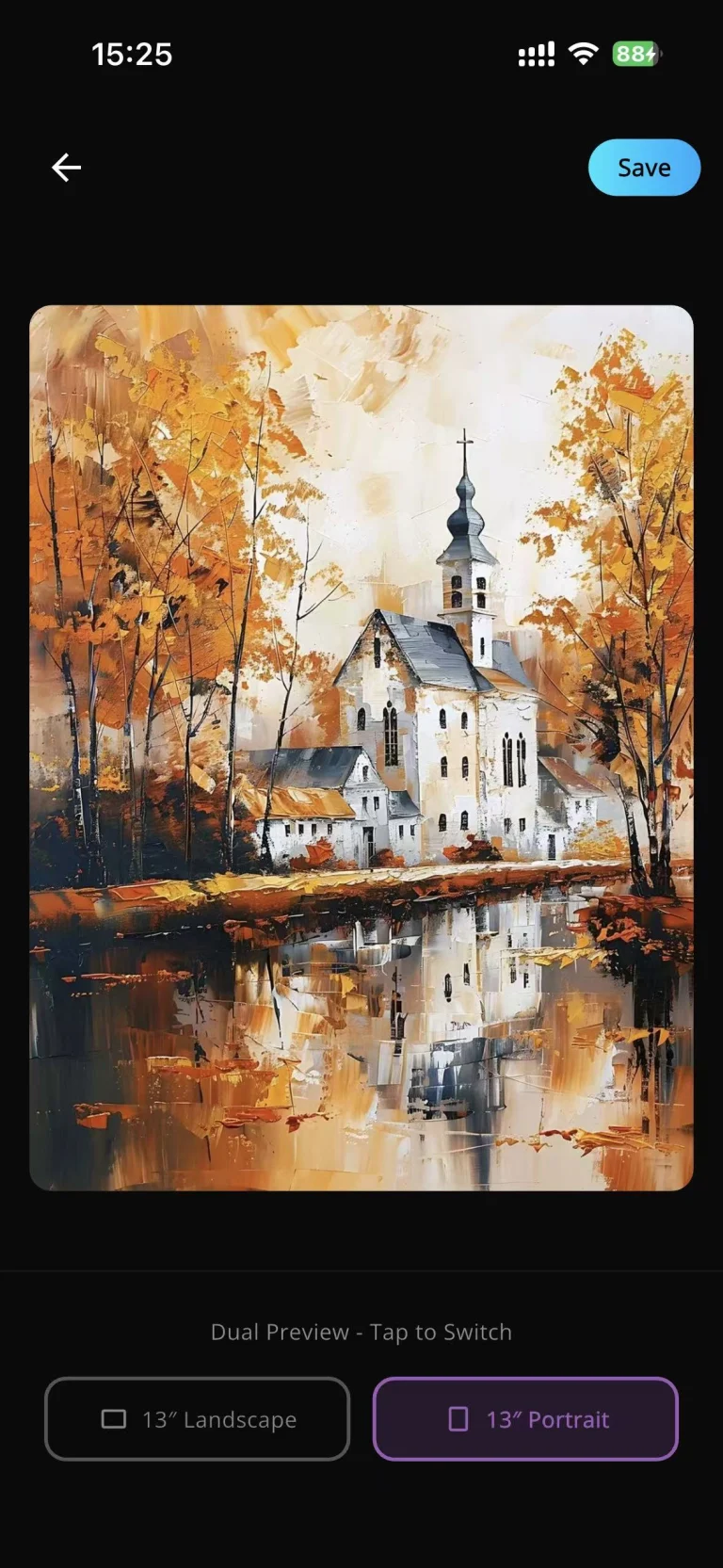
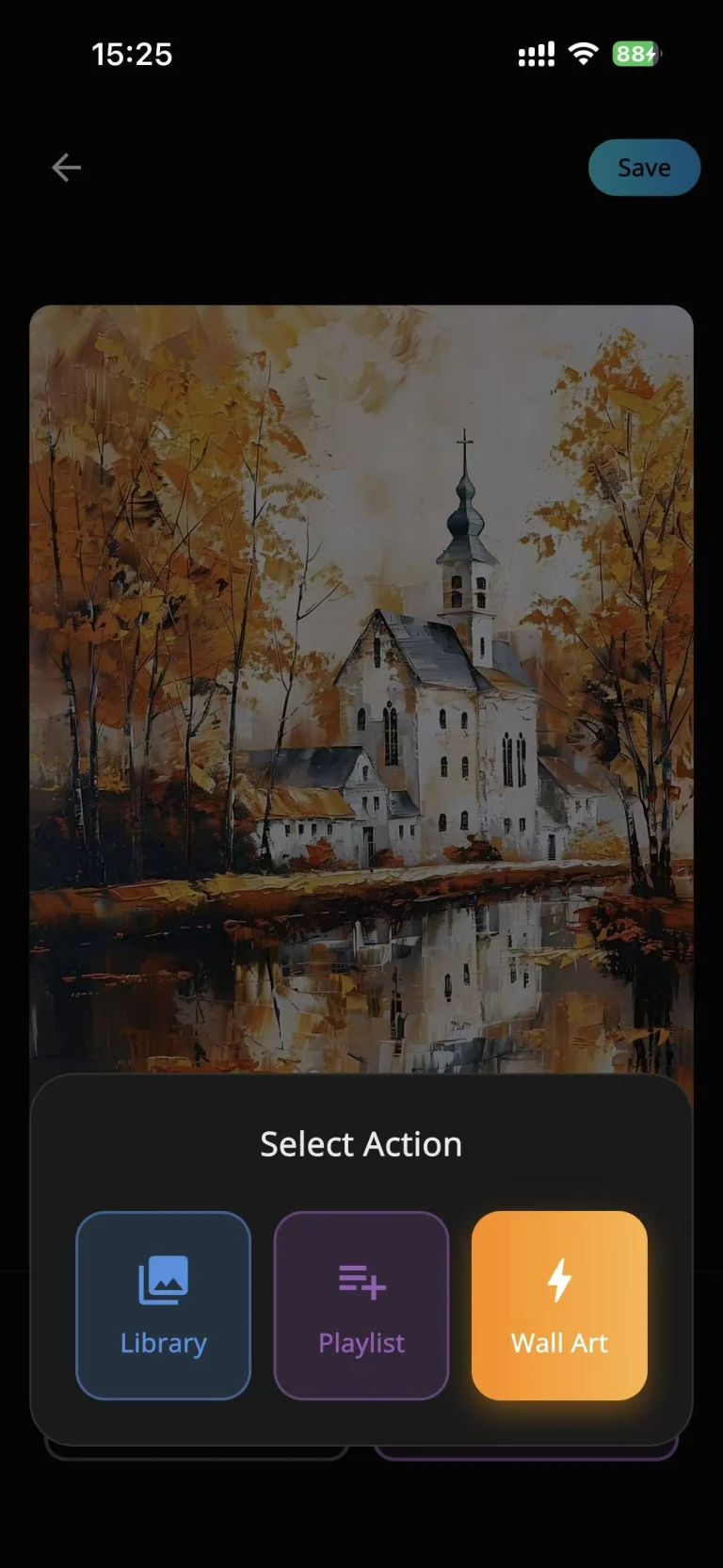
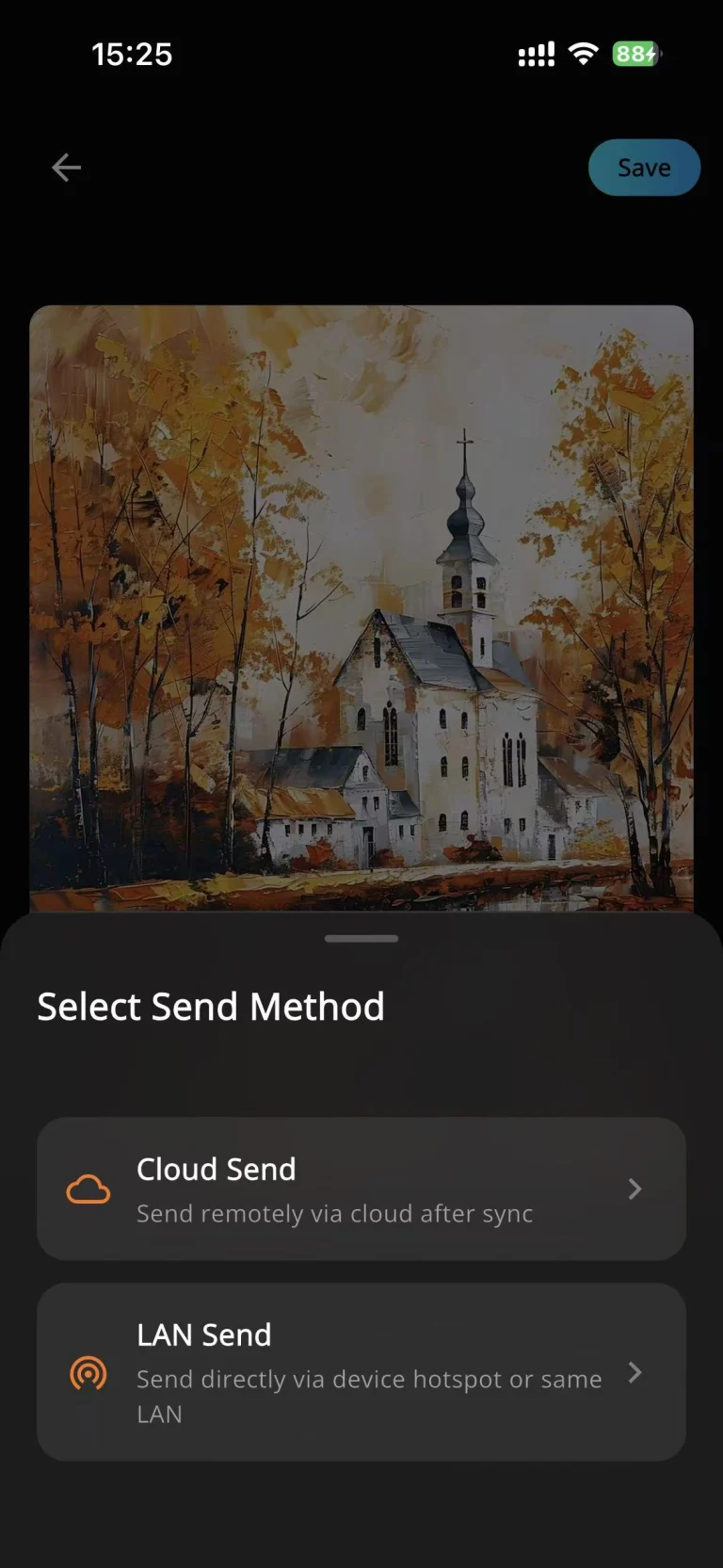
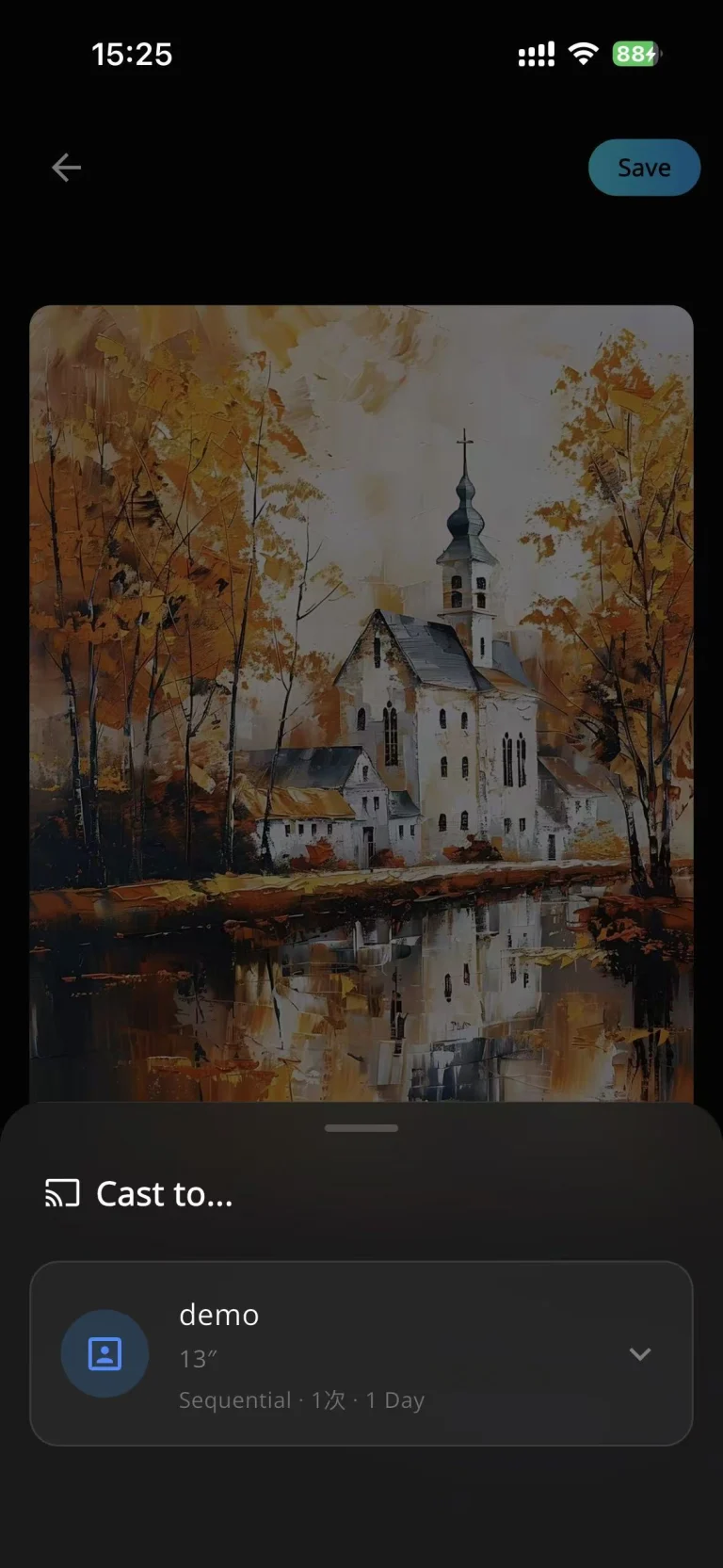
Select photos in the JITRAINNO App, preview and confirm the image, and then send it to the device. You can:
- Send a single photo.
- Add multiple photos to a playlist and configure rotation.
- Select images from the content gallery and send them directly or add them to a playlist.
Single photos that have been successfully sent can remain displayed. Photos in a transferred playlist can also continue rotating while the device is temporarily offline.
Send a Single Photo
Button Controls
Before using the following button functions, make sure the physical power switch on the back of the device is on.
Wakes the device and, if its orientation has changed, updates the image orientation
Starts voice interaction
Cancels the current voice interaction
Enters network configuration mode
Restores factory settings
After a factory reset, you must configure the network and bind the device again. Confirm before proceeding.
Button functions may change with device firmware updates. Refer to the latest instructions in the JITRAINNO App.
Main Features
Photos and Playlists
You can create multiple playlists, add photos, set the image change interval, and send playlists to the device. Shorter intervals increase the number of screen refreshes and reduce battery life. Available settings are subject to the App.
Content Gallery
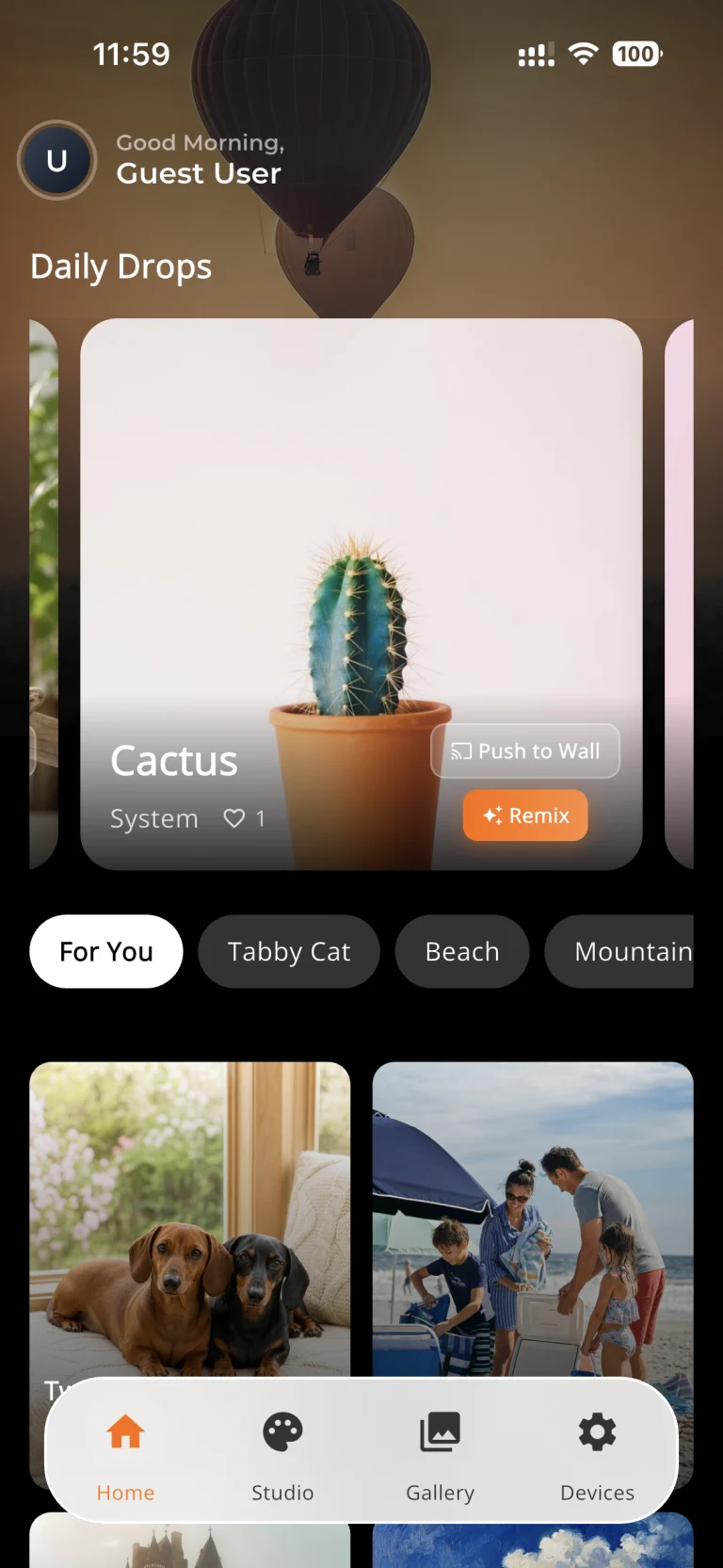
From the content gallery on the JITRAINNO App home screen, you can select images and send them directly to the device or add them to a playlist.
Text-to-Image and Image Editing
In the JITRAINNO App, you can generate images from text descriptions or modify images through text interaction. Results may vary depending on the description, network connection, and service availability.
Voice Interaction
When using cloud binding, double-press the front button to enter voice interaction mode and generate or modify images by voice. This feature requires an available network connection.
Device Sharing
In cloud binding mode, you can share the device with family or friends through the JITRAINNO App. Invited members can help manage the device and change the displayed image.
Battery and Battery Life
The device contains a rechargeable lithium-ion battery. Actual battery life depends on screen refresh frequency, network connectivity, voice feature usage, ambient temperature, initial charge level, and battery aging. Reducing the number of screen refreshes helps extend battery life.
Photos, Cloud Backup, AI Features, and Privacy
After receiving system authorization, the JITRAINNO App accesses the photos you select for transfer. The actual scope of access depends on your selection and phone settings. You can review or change photo access in system settings at any time, but disabling required permissions may affect photo transfer.
Binding Method Comparison
Cloud binding
- Connection
- The device connects to the JITRAINNO cloud through 2.4 GHz Wi-Fi
- Photo transfer
- Photos are sent to the device through the JITRAINNO cloud
- Cloud backup
- Photos required for cloud binding are uploaded to the cloud
- Device sharing
- Supported
- Voice interaction
- Supported
Offline binding (direct phone connection)
- Connection
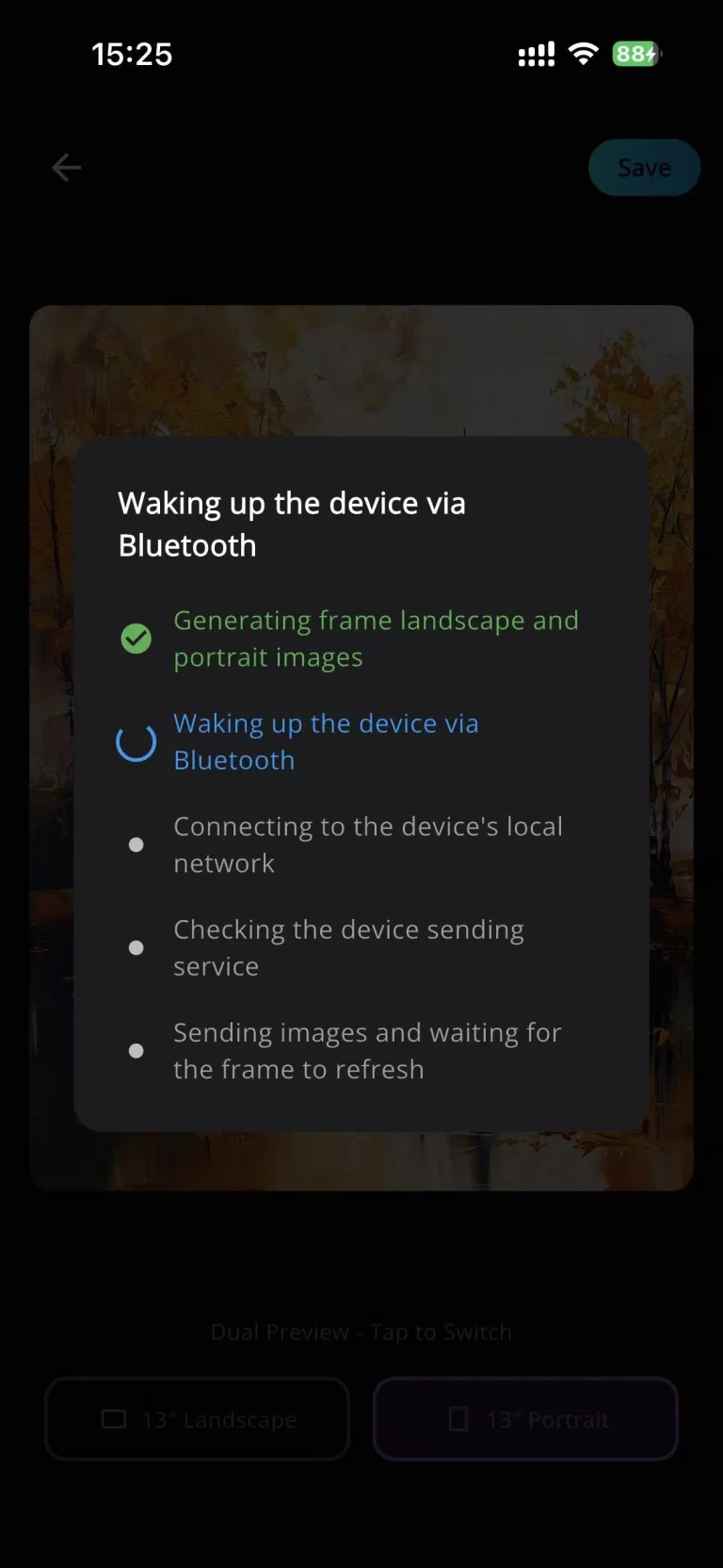
- The JITRAINNO App first wakes the frame through Bluetooth, then connects to the device Wi-Fi hotspot whose name begins with “JT-”
- Photo transfer
- Photo files are sent directly from the phone to the device without a server acting as the transfer relay
- Cloud backup
- If the user is signed in and cloud backup is enabled, the JITRAINNO App uploads media metadata and files to the server for backup in the background
- Device sharing
- Not supported
- Voice interaction
- Not supported
Cloud Binding
In cloud binding mode, selected photos are uploaded to the JITRAINNO cloud and synchronized to bound JITRAINNO devices. JITRAINNO uses cloud services supported by Amazon Web Services (AWS) and encryption technology to protect uploaded photos. Refer to the JITRAINNO Privacy Policy for the scope of encryption, data retention, and deletion practices.
Device members whom you invite can view content sent to the device. Invite only people you trust, and promptly remove members who no longer need access.
Text, Image, and Voice Interaction
When using text-to-image generation, image editing, or voice interaction, the text, images, or voice content you submit must be transmitted through the network to the relevant services for processing. Do not submit content you are not authorized to use or sensitive information that you do not want processed through the network. Refer to the JITRAINNO Privacy Policy for specific data processing practices.
Offline Binding and Cloud Backup
In offline binding mode, the JITRAINNO App first wakes the frame through Bluetooth and then connects to the device Wi-Fi hotspot whose name begins with “JT-”. The hotspot is used only for local communication between the phone and frame and does not provide internet access. Photo files are sent directly from the phone to the device through this local network connection, without a JITRAINNO server acting as the transfer relay. “Offline” describes only the phone-to-device photo transfer path; it does not mean that media will never be uploaded to a server.
If the user is signed in to a JITRAINNO account and cloud backup is enabled, the JITRAINNO App uploads media metadata and media files to the server for cloud backup in the background when the phone has network access. This backup upload is independent of the direct phone-to-device transfer. If you do not want media uploaded to a server, confirm that cloud backup is disabled before use.
Keep your phone and device secure. Before transferring ownership of or disposing of the device, delete content you no longer need and unbind the device. If cloud binding or device sharing has been used, also remove members who no longer need access. Refer to the latest instructions in the JITRAINNO App for specific procedures.
Power Information and Component Certifications
Optional Power Adapter
The power adapter is optional. The specifications below apply to the optional JITRAINNO power adapter. Use the included USB Type-C cable with this adapter or a compatible certified power adapter to power or charge the device.
| Adapter model | PS20C120K1670UC |
|---|---|
| Input | 100-240 V~, 50/60 Hz, 0.6 A max. |
| Output | 5.0 V ⎓ 3.0 A (15.0 W); 9.0 V ⎓ 2.22 A (19.98 W); 12.0 V ⎓ 1.67 A (20.0 W max.) |
| Supported protocols | QC 2.0, QC 3.0, PD 3.0, AFC, FCP, Apple 2.4A, DCP |
| No-load power consumption | Less than 0.1 W |
| Adapter operating environment | 0-40°C, 25%-90% relative humidity |
The protocols and output levels above describe the capabilities of the optional JITRAINNO power adapter. They do not indicate that the Jitrainno Echo-31 (31.5) supports or uses every listed protocol or output level.
The adapter provides overcurrent, short-circuit, and overvoltage protection. It enters protection mode in the event of an overcurrent or short circuit and can recover automatically after the fault is cleared. If protection mode occurs repeatedly or the adapter does not recover, stop using it, do not repeatedly unplug and reconnect it, and contact JITRAINNO Customer Support.
Built-in Battery
| Battery type | Rechargeable lithium-ion battery cells |
|---|---|
| Battery model | ZN985082-R1 |
| Rated voltage | 11.4 V |
| Rated capacity | 5200 mAh |
| Battery pack charging ambient temperature | 10-45°C |
| Battery pack discharging ambient temperature | -10-70°C |
These temperature ranges come from the battery pack specifications and are not the operating, charging, or storage temperature ranges of the complete Jitrainno Echo-31 (31.5) device. When using the adapter to power or charge the Jitrainno Echo-31 (31.5), also comply with the adapter operating environment requirements and avoid use or charging in extreme temperatures.
The battery pack includes protection circuits for overcharge, overdischarge, overcurrent, and short circuit. Do not disassemble, crush, or puncture the battery, or expose the device to fire or high temperatures. If the device or battery swells, leaks, develops an unusual odor, or becomes unusually hot, stop using it immediately and contact JITRAINNO Customer Support.
Safety Certifications and Compliance
- The optional JITRAINNO power adapter is cETLus Listed and complies with UL 62368-1 and CSA C22.2 No. 62368-1. Intertek control number: 4007565.
- The optional JITRAINNO power adapter complies with FCC Part 15 Subpart B Class B requirements and meets U.S. Department of Energy Efficiency Level VI.
- The power adapter materials comply with RoHS and REACH requirements.
- The built-in battery pack was evaluated by Intertek to UL 2054:2021 Ed.3 + R:10Mar2022. Report number: 240826051SZN-001.
The certifications and compliance information above apply only to the optional JITRAINNO power adapter or built-in battery pack. They do not indicate that the complete Jitrainno Echo-31 (31.5) device has obtained the same certifications. Refer to the product, adapter label, and official certification documents for certification marks and their applicable scope.
Important Safety Instructions
⚠️ Read and follow these safety instructions carefully before using this product. Failure to follow these instructions may damage the device or result in fire, electric shock, or personal injury.
Electrical and Charging Safety
- Use the included USB Type-C cable with the optional JITRAINNO power adapter or a compatible certified power adapter. Do not use accessories with unknown output specifications, accessories that are uncertified, or accessories that are incompatible with this product.
- Do not use a damaged adapter or cable, a loose outlet, or an overloaded power strip.
- Hold the plug when connecting or disconnecting power; do not pull the cable. Route cables to prevent tripping, crushing, or pulling by children or pets.
- Disconnect external power before cleaning or moving the device and when it will not be used for an extended period.
- If the device becomes unusually hot, emits an unusual odor or sound, is visibly damaged, or has liquid inside, stop using it immediately. If you can safely do so without touching a wet device, unplug the adapter from the outlet. Otherwise, do not touch the device and seek professional assistance.
Battery Safety
- This product contains a built-in lithium-ion battery. Do not disassemble or replace the battery yourself, and do not puncture, crush, burn, or short-circuit it.
- Do not charge, use, or store the device in high temperatures, direct sunlight, or near open flames, heaters, stoves, or other heat sources.
- If you notice swelling, leakage, an unusual odor, or unusual heat, stop using the device. Do not touch leaking fluid. If fluid contacts your skin or eyes, rinse immediately with plenty of clean water and seek medical attention.
Operating Environment
- This product is for indoor use only and is not waterproof. Do not expose it to rain or other liquids, or use it where condensation, high humidity, or extreme temperatures may occur.
- Keep it away from bathtubs, sinks, humidifiers, kitchen stoves, heaters, fireplaces, and areas with moisture, cooking fumes, or high temperatures.
- Place the device on a stable, dry, well-ventilated surface and avoid prolonged direct sunlight.
Screen and Structural Safety
- The e-paper display is delicate. Do not drop, bend, strike, twist, or crush the device, or place heavy objects on the display or frame.
- Do not press or scratch the display with keys, pens, tools, fingernails, or other sharp or hard objects.
- The display may flash briefly while refreshing. Users sensitive to flashing images should avoid staring at the screen during a refresh. If you experience discomfort, stop using the device and consult a physician.
- If the display breaks, the frame deforms, or sharp fragments are exposed, stop using the device, do not touch the damaged area, and contact JITRAINNO Customer Support.
- Do not disassemble, modify, or repair the device yourself. Unauthorized repairs may create safety risks, and resulting damage may not be covered by warranty to the extent permitted by applicable law.
Children, Pets, and Wall-Mounting Safety
- Keep small parts such as screws, cables, and packaging materials out of the reach of children and pets. Small parts may present a swallowing or choking hazard, while cables and packaging materials may cause entanglement or suffocation.
- For wall mounting, use the Wall-Mounting Bracket as shown and verify that it is fully seated and secure before releasing the frame. Improper installation may cause the device to fall, resulting in personal injury or property damage.
Recycling and Disposal
The built-in battery is not user-removable. Dispose of the complete device through a qualified electronics or battery recycling facility in accordance with local laws and regulations. Do not dispose of the device with ordinary household waste, and do not burn the device or battery. Recycle or dispose of packaging materials according to local sorting requirements.
Cleaning and Care
Disconnect external power before cleaning the device. Clean only the exterior and do not allow liquid to enter any port or the enclosure.
E-Paper Display
- Wipe gently with a clean, soft, dry microfiber cloth.
- Do not use alcohol, solvents, household cleaners, wet wipes, or abrasive materials.
- Do not spray liquid directly onto the display or rub or press it forcefully.
Wooden Frame
Natural wood may have slight variations in grain, color, and texture. These are generally normal characteristics of the material. Contact JITRAINNO Customer Support if you notice cracking, structural looseness, or another issue that affects use.
- Clean the wooden frame with a soft, dry cloth.
- Do not use alcohol, solvents, furniture treatments, or other chemical cleaning products.
- Keep the wooden frame away from water. Do not leave it in high humidity, near a heat source, or in direct sunlight for extended periods. Changes in temperature and humidity may cause slight expansion, contraction, discoloration, or deformation.
Routine Maintenance and Storage
- When moving the device, hold the frame securely with both hands. Do not touch or press directly on the display.
- Avoid dust, moisture, steam, cooking fumes, strong heat sources, and prolonged direct sunlight.
- Before long-term storage, disconnect external power and store the device in a dry, well-ventilated location with a relatively stable temperature.
- Prevent pressure on the display during storage and keep the device away from sharp objects.
Troubleshooting and Frequently Asked Questions
What Should I Do If the App Cannot Find the Device or Binding Fails?
Check the following in order:
- Confirm that the physical power switch on the back is on, the device is connected to power, and the phone is close to the device.
- Confirm that Bluetooth and Wi-Fi are enabled on the phone.
- Confirm that the JITRAINNO App has the required system permissions and has been updated to the latest version.
- Confirm that the correct binding method is selected in the App.
- For cloud binding, confirm that the router has 2.4 GHz Wi-Fi enabled, the password is correct, and the device is close to the router.
- For offline binding, confirm that the JITRAINNO App has woken the frame through Bluetooth, the phone is connected to the device Wi-Fi hotspot whose name begins with “JT-”, and the connection remains active during the operation.
After completing these checks, follow the App instructions to bind the device again. Do not disassemble the device or perform an unconfirmed reset unless instructed by official JITRAINNO documentation.
What Should I Do If Photos Cannot Be Sent to the Device?
- Confirm that the correct device is selected in the App.
- For cloud binding, confirm that network connections for the phone, device, and router are available.
- For offline binding, confirm that the phone is connected to the device Wi-Fi hotspot whose name begins with “JT-” and remains connected until the photo transfer is complete.
- Confirm that the device has sufficient charge and the App is up to date.
- Reopen the photo preview and send it again. Only content successfully transferred to the device can remain displayed while the device is offline.
What Should I Do If Voice Interaction Is Unavailable?
Voice interaction is available only with cloud binding. Confirm that the device is connected to an available 2.4 GHz Wi-Fi network and network services are operating normally. Then double-press the front button and follow the instructions on the device or in the App. If the service is temporarily unavailable, try again later.
What Should I Do If the Device Does Not Charge?
- Confirm that you are using the included USB Type-C cable with the optional JITRAINNO power adapter or a compatible certified power adapter.
- Check that the adapter, cable, device port, and wall outlet are securely connected and show no visible damage.
- Move the device to a dry, well-ventilated indoor environment at a suitable temperature and try again.
- If the adapter repeatedly enters protection mode, or the device develops unusual heat, odor, swelling, or damage, stop using it and contact JITRAINNO Customer Support.
Does the Device Support 5 GHz Wi-Fi?
No. The Jitrainno Echo-31 (31.5) currently supports only 2.4 GHz Wi-Fi. With a dual-band router, use its 2.4 GHz network for cloud binding.
Can the Device Continue Displaying Photos While Offline?
Yes. A single photo or playlist that has been successfully transferred can continue to display while the device is offline. Sending new photos, changing a playlist, or using cloud features requires restoring the appropriate network or direct phone connection for the current binding mode.
Does Offline Binding Upload Media to a Server?
During offline binding, photos are sent directly from the phone to the device without a server acting as the transfer relay. However, if the user is signed in to a JITRAINNO account and cloud backup is enabled, the JITRAINNO App uploads media metadata and media files to the server for backup in the background when the phone has network access. If you do not want uploads, confirm that cloud backup is disabled before use.
Is It Normal to See a “No Internet Access” Message After Connecting to the “JT-” Hotspot?
Yes. The device Wi-Fi hotspot whose name begins with “JT-” is used only for local communication between the phone and frame and does not provide internet access. Keep the phone connected to this hotspot until offline binding or photo transfer is complete.
Is It Normal for the Screen to Keep Showing an Image After Power Is Disconnected?
Yes. An e-paper display can retain a fully refreshed image without continuous power. The last image may therefore remain visible after external power is disconnected or the battery is depleted. This does not mean the device is still running.
What Should I Do If the Image Does Not Rotate After I Change the Device Orientation?
After changing the device to landscape or portrait orientation, press the front button once to wake the device and trigger the image orientation update.
Why Does the Screen Flash When Changing Images?
An e-paper display may briefly flash or change colors as it rearranges display particles and completes a full-screen refresh. This is normally expected. If the display flashes continuously, cannot complete a refresh for an extended period, or shows a persistent abnormal area, contact JITRAINNO Customer Support.
Why Does Actual Battery Life Vary?
Battery life is affected by screen refresh frequency, network connectivity, voice feature usage, ambient temperature, initial charge level, and battery aging. Reducing the number of refreshes helps extend battery life.
How Is an E-Paper Display Different from a Liquid Crystal Display (LCD)?
An e-paper display uses ambient light and has a paper-like appearance. It consumes most of its power when refreshing an image. An LCD generally emits light continuously. E-paper refreshes more slowly, and its image transition behavior differs from an LCD.
For more help, visit jitrainno.com/help.
Product Information
| Product name | Jitrainno Echo-31 (31.5) |
|---|---|
| Model | Echo-31 |
| Screen size | 31.5" |
| Product dimensions | 603 × 903 mm |
| Product thickness | 33 mm |
| Display | E Ink Spectra 6, full color |
| Screen resolution | 2560 × 1440 |
| Frame | Solid wood frame |
| Display type | E-paper display |
| Display orientation | Landscape or portrait |
| Wireless network | 2.4 GHz Wi-Fi (5 GHz is not supported) |
| Device binding | Bluetooth-assisted binding; supports cloud binding and offline binding (direct phone connection) |
| Power | Built-in battery · USB-C charging |
| Connectivity | Wi-Fi 2.4 GHz |
| Interaction | Voice control |
| Power and charging port | USB Type-C |
| Built-in battery | 11.4 V, 5200 mAh rechargeable lithium-ion battery |
| Battery capacity | 11.4 V · 5200 mAh |
| Placement | Wall mounting |
| Operating temperature | 0-50°C |
| Exterior material | Solid wood frame |
| Country of origin | Made in China |
Warranty and Customer Support
Warranty coverage and duration may vary by sales region and purchase channel. Refer to the warranty information supplied with the product or provided by the retailer, and retain your proof of purchase.
If you need assistance, contact the retailer or an official JITRAINNO Customer Support channel. To help troubleshoot the issue, prepare the following information:
- Product model: Echo-31.
- Proof of purchase or order information.
- A description of the issue, relevant error messages, and photos or videos that demonstrate the problem.
Do not disassemble the device or built-in battery while troubleshooting.